> For the complete documentation index, see [llms.txt](https://docs.gxc.io/llms.txt). Markdown versions of documentation pages are available by appending `.md` to page URLs; this page is available as [Markdown](https://docs.gxc.io/hw/lte/4g-mesh-nodes/gm02/gm02-mesh-node-installation-guide/installation.md).
# Installation
The following topics include reference instructions for wall and pole mounting to various substrates, and instructions for cabling the unit. The following drawings, images, and instructions only provide typical reference installations and best practices. Adequacy of the final installation and mounting configuration is at the installer’s discretion and responsibility.
## Unbox the Mesh Node
{% stepper %}
{% step %}
Unbox the GM02 Mesh Node. After opening the packaged unit, the Accessory Kit is enclosed in a smaller box within the foam padding at the top of the enclosed unit.
Unboxing – Accessory and Mounting Bracket Boxes
{% endstep %}
{% step %}
Remove the Accessory Kit and Mounting Bracket boxes.
{% endstep %}
{% step %}
The Mesh Node unit is on the bottom layer of the box.
Unboxing – GM02 Mesh Node
{% endstep %}
{% endstepper %}
## Insert SIM Card(s)
The GM02 Mesh Node supports up to two SIM cards to access network services. The SIM card slots are located on the top of the Mesh Node.
{% hint style="info" %}
**NOTE:** The GM02 is typically shipped with one SIM Card preinstalled.
{% endhint %}
{% stepper %}
{% step %}
To gain access to the GM02’s SIM Card slots, begin by fully loosening each of the four M3 Captive Screws in the top access cover using a 2.5mm Allen Driver.
SIM Card Slot Cover Removal
{% endstep %}
{% step %}
Once each of the captive screws has been fully loosened, set the cover to the side of the unit.
SIM Card Slot Cover Removed
{% endstep %}
{% step %}
Note the labels that identify the SIM 1 slot and the SIM 2 slot on the top of the Mesh Node.
SIM Card Slot Labels
{% endstep %}
{% step %}
Insert standard size SIM Card into SIM Socket 1 in the orientation shown with its contacts facing the front of the unit and the trimmed corner (notch) oriented in the lower-left corner, as shown below. Ensure that card is inserted straight into socket. If significant resistance is felt, remove the SIM card, realign, and insert it into the socket again.
SIM Card Insertion
{% endstep %}
{% step %}
Once the SIM Card is inserted into the SIM Socket, apply straight downward pressure to the card until an audible “click” is heard indicating full insertion of the card.
{% endstep %}
{% step %}
When fully inserted approximately 1/8 inch of the SIM Card will be exposed from the top of the SIM Socket, as shown below.
Fully Inserted SIM Card
{% endstep %}
{% step %}
Replace cover and tighten the four M3 Captive Screws. Torque the M3 Captive Screws to 4 in-lbs. +/- 10% (0.45 N-m +/- 10%). Do not over torque screws.
{% endstep %}
{% endstepper %}
## Mount GM02 Mesh Node on Pole or Mast
The following topics describe how to mount the GM02 Mesh Node on a pole or mast. The Mesh Node can be mounted in dual mount configuration with a G501 Outdoor AP sharing the mount or it can be mounted in a stand-alone configuration. The mounting bracket assembly kit supports both dual mounting and stand-alone mounting configurations.
### Mounting Bracket Dimensions
*Figure: Features and Dimensions of Mounting Bracket Assembly* displays the features and dimensions of the Mesh Node Mounting Bracket (GXC P/N 210048-00), which is used in various mounting configurations. Dimensions are shown in the following format: “Inches \[Millimeters]”.
Features and Dimensions of Mounting Bracket Assembly
### Mounting Bracket Preassembly
The following preassembly instructions apply to the pole mounting options. Preassembly is not needed when wall mounting the Mesh Node.
Mounting Bracket Preassembly
{% stepper %}
{% step %}
Install a stainless steel M8 flat washer over each of the four 90mm long M8 hex bolts.
{% endstep %}
{% step %}
Insert the M8 hex bolts with washers through the clearance holes in the mounting bracket as shown.
{% endstep %}
{% step %}
Install two mounting clamps over the M8 hex bolts as shown, so that the alignment tabs of the clamps insert into the inner slots (adjacent to the clearance holes) in the mounting bracket.
{% endstep %}
{% step %}
Install M8-1,25 hex flange nuts onto each of the M8 hex bolts and tighten them over the mounting clamps; see Detail A.
{% endstep %}
{% step %}
Torque the four M8 nuts to a minimum of 15 ft-lbs. (20 N-m) +/- 10% while supporting the head of the M8 bolt with a wrench.
{% endstep %}
{% endstepper %}
### Assembly for Combined Mesh Node and AP Pole Mounting
The GXC preferred assembly configuration for combined Mesh Node and Mesh AP mounting to a pole with a diameter of 1.5 to 3 inches \[38 to 76mm) is described in the following topics.
#### Combined Mesh Node and AP Bracket Assembly to Pole
Combined Mounting Brackets Assembly on Pole
{% stepper %}
{% step %}
Place the previously assembled Mesh Node mounting bracket over the mounting pole or mast at the desired height.
{% endstep %}
{% step %}
While supporting the Mesh Node mounting bracket, install the G501 AP mounting bracket over the 90mm long M8 hex bolts as shown in *Figure: Combined Mounting Brackets Assembly on Pole*.
{% endstep %}
{% step %}
Install M8-1,25 hex flange nuts onto each of the 90mm M8 hex bolts and tighten to the G501 AP mounting bracket.
{% endstep %}
{% step %}
Torque the four M8 nuts to a minimum of 6 ft-lbs. (8 N-m) using a wrench.
{% endstep %}
{% endstepper %}
### Assembly for Stand-Alone Mesh Node Pole Mounting
The GXC preferred assembly configuration for mounting a Stand-Alone Mesh Node to a pole with a diameter of 1.5 to 3 inches \[38 to 76mm) is described in the following topics.
#### Assembly for Stand-Alone Mounting Bracket to Pole
Stand-Alone Mounting Bracket Assembly
{% stepper %}
{% step %}
Place the previously assembled Mesh Node mounting bracket over the mounting pole or mast at the desired height.
{% endstep %}
{% step %}
While supporting the Mesh Node mounting bracket, install two Mesh Node pole mounting clamps over the 120mm long M8 hex bolts as shown in *Figure: Stand-Alone Mounting Bracket Assembly*.
{% endstep %}
{% step %}
Install M8-1,25 hex flange nuts onto each of the 120mm M8 hex bolts and tighten to the Mesh Node mounting clamps; See *Figure: Stand-Alone Mounting Bracket Assembly, Detail D*.
{% endstep %}
{% step %}
Torque the four M8 nuts to a minimum of 6 ft-lbs. (8 N-m).
{% endstep %}
{% endstepper %}
### Assembly for Stand-Alone Mesh Node Pole Mounting > 3 inches
The GXC preferred assembly configuration for mounting a Mesh Node to a pole with a diameter greater than 3 inches \[75mm) is described in the following topics.
#### Assembly for Stand-Alone Mounting Bracket to Pole > 3 Inches
{% hint style="info" %}
**NOTE:** The strapping system detailed is for reference only! The hardware is NOT included with the mounting kit. The specific strapping system used is the installer’s option. It is suggested that the strapping system chosen should be corrosion resistant (e.g., stainless steel) and have a break strength of no less than 600 lbs. (272 kg) in total.
{% endhint %}
Stand-Alone Mounting Bracket Assembly > 3 Inches
{% stepper %}
{% step %}
Install stainless steel system through the outside slots of the previously assembled mounting bracket and over the bolt heads as shown in *Figure: Stand-Alone Mounting Bracket Assembly > 3 Inches*.
{% hint style="info" %}
**NOTE:** The strapping system shown in the drawing has a preassembled buckle. Strapping must be selected or cut to a length that will go around the pole and allow the tag end to reach the buckle or anchor for assembly.
{% endhint %}
{% endstep %}
{% step %}
Place the bracket assembly against the pole or strut and assemble the strap to the buckle or anchor and tighten using appropriate tools to manufacturer’s specifications and secure the tag end of the strap.
{% endstep %}
{% endstepper %}
### Backhaul Antenna Mast (Optional)
|
In some Mesh Node installations, mounting the backhaul antenna on a separate sub-pole (antenna mast) may facilitate pointing the antenna while providing more space for the other components on the primary mounting pole. Although GXC does not sell a mounting kit for this purpose, the pole-to-pole mast mount kits and antenna masts are available from online retailers. The web links for these products shown below were active at the time that this guide was published. Similar products may be available from other manufacturers.
3S-HD-PTP-6 Heavy Duty HDG Pole to Pole Mast Mount 1.25" to 4.25" OD (Two required). Each 3S-HD-PTP-6 kit includes (4) HD Alligator Clamps, (2) 12” threaded rods, (8) FLG Nuts. 3starinc.com
| |
|
SKY32817C Galvanized Antenna/Dish Mast (30” Long x 2” O.D) Skywalker.com
| |
## Mount GM02 Mesh Node on Wall
The following topics describe how to mount the GM02 Mesh Node on a wall. The following topics cover mounting the GM02 Bracket to concrete block, solid concrete, and wood/steel framed structural walls.
### Assembly for Mounting Mesh Node to Block or Solid Concrete Walls
The GXC assembly configuration for mounting a Mesh Node to a concrete block wall or a solid concrete wall is described in the following topics.
{% hint style="info" %}
**NOTE:** When installing the Mesh Node to a concrete wall made of either concrete block or solid concrete, use of a hammer drill with a carbide tip is recommended. Care must be taken to drill and install the necessary fasteners. Concrete blocks are generally hollow and brittle. Both concrete block and concrete can be inconsistent in quality. Holding values depend on the quality of the block and concrete and the mortar placed in the joints between the blocks. Do not install into spalled, cracked, or otherwise questionable quality concrete or concrete block.
{% endhint %}
Example Assembly for Mounting to Concrete Block
{% stepper %}
{% step %}
Obtain corrosion resistant stainless steel sleeve anchors for mounting the Mesh Node bracket. The fastener (stud/screw) must not exceed 5/16” (8mm). The hardware is not included with the mounting kit.
{% hint style="info" %}
**NOTE:** The installer must use corrosion-resistant stainless-steel hardware, with 316 stainless steel strongly recommended. Note that the hardware is not included with the product.
{% endhint %}
{% endstep %}
{% step %}
Use the mounting hole dimensions shown in Figure 18 to locate and mark the holes for drilling on the selected wall.
{% endstep %}
{% step %}
Using a drill bit with a diameter specified by the fastener or the fastener manufacturer drill four holes in the concrete block using the markings completed in the previous step. Drill to a depth specified by the sleeve anchor fastener specification.
{% endstep %}
{% step %}
Insert the stainless-steel sleeve anchors into the concrete block.
{% hint style="info" %}
**NOTE:** Drill bit diameter, drilled hole depth, and fastener installation torque shall be specified by fastener or fastener system manufacturer.
{% endhint %}
{% hint style="info" %}
**NOTE:** Fasteners to provide a minimum pull-out and shear strength of 350 lbs. (158 kg) in total.
{% endhint %}
{% endstep %}
{% step %}
Tighten the nut for each anchor to the torque specified by the manufacturer.
{% endstep %}
{% step %}
Remove the nut and washer from each sleeve fastener.
{% endstep %}
{% step %}
Place the Mesh Node mounting bracket over the fasteners as shown in *Figure: Example Assembly for Mounting to Concrete Block*.
{% endstep %}
{% step %}
Install the fastener washers and nuts and tighten to the fastener manufacturer’s specifications.
Completed Bracket to Concrete Block Assembly Example
{% endstep %}
{% step %}
Refer to the instructions in the [Assembly for Mounting Mesh Node to Block or Solid Concrete Walls](#assembly-for-mounting-mesh-node-to-block-or-solid-concrete-walls) instructions for general installation details.
*Figure: Example Installation into a Solid Concrete Wall* depicts an example installation into a solid concrete wall using 1-1/2-inch long, 5/16-inch thread corrosion-resistant flat washers fastened into 5/16-inch screw size, 1-3/4” long die cast zinc Lag Shields installed into a concrete wall. The hardware is not included with the product.
Example Installation into a Solid Concrete Wall
{% endstep %}
{% step %}
Torque the hex head lag screws per the Lag Shield specification for concrete substrate.
Completed Bracket to Concrete Wall Assembly Example
{% endstep %}
{% endstepper %}
### Assembly for Mounting Mesh Node to Wood/Steel Framed Walls
The GXC assembly configuration for mounting a Mesh Node to a wood or steel framed wall is described in the following topics.
{% hint style="info" %}
**NOTE:** When installing a Mesh Node to a wood or steel framed structural wall, the mounting bracket must either be mounted directly to internal studs with spacing matching the width of the bracket’s mounting hole pattern (4.37”) or a structural brace shall be utilized made from no less than 2”x 6” nominal lumber spanning no less than two studs.
{% endhint %}
{% hint style="info" %}
**NOTE:** Do not install braces or the mounting bracket to rotting or otherwise compromised framework or sheathing material.
{% endhint %}
{% hint style="info" %}
**NOTE:** If the installation is to be made in an outdoor location and a structural brace will be utilized, the brace shall be made of pressure-treated nominal lumber (ACQ/CCA) or other weather-resistant material capable of supporting no less than 350 lbs. (158 kg) vertical force.
{% endhint %}
{% hint style="info" %}
**NOTE:** Installer shall utilize common building practices to locate the internal studs ensuring that the fasteners used to secure the mounting bracket or structural brace are roughly centered on the internal framework of the wall and use common weather-proofing construction methods.
{% endhint %}
{% hint style="info" %}
**NOTE:** If a structural brace is to be utilized, the screws used for mounting the brace to the wall shall use a material and/or finish that protects the fastener from corrosion caused by chemicals utilized in the pressure treatment or manufacture of the brace material.
{% endhint %}
{% hint style="info" %}
**NOTE:** The length of the fasteners used to secure either the structural brace or the mounting bracket to the wall shall be chosen such that penetration into the structural framework (studs) is no less than 1-1/2” (38mm).
{% endhint %}
{% stepper %}
{% step %}
To mount the Mesh Node mounting bracket, use the mounting holes dimensions shown in *Figure: Features and Dimensions of Mounting Bracket Assembly*.
{% endstep %}
{% step %}
Drill the four holes using the drill bit diameter specified by the fastener or the fastener system manufacturer. The fastener must not exceed 5/16” (8mm) diameter.
{% endstep %}
{% step %}
Place the mounting bracket on the wall.
{% endstep %}
{% step %}
Insert the fasteners through flat washers and tighten the fasteners using the torque values specified by the fastener or fastener system manufacturer.
{% endstep %}
{% endstepper %}
*Figure: Example Installation Wood Framed Wall* depicts an example installation of the mounting bracket mounted to a wood framed wall using #10 ACG/CCA compatible wood screws and 5/16” lag screws.
Example Installation Wood Framed Wall
## Mesh Node to Bracket Mounting
After the Mesh Node bracket is mounted to a pole or wall, the Mesh Node can be attached to the bracket using its flange bolts.
### Loosen Flange Bolts
{% stepper %}
{% step %}
Place the Mesh Node face down and confirm that the four M6-1.0 12mm long flange bolts are installed in the back of the unit.
GM02 Flange Bolts
{% endstep %}
{% step %}
Loosen each of the M6 flange bolts to make sure that at least 3/16” (4mm) of gap exists between the casting of the Mesh Node unit and the underside of the washer of the M6 Flange Bolts.
M6 Flange Bolt Gap
{% endstep %}
{% endstepper %}
### Mount Mesh Node on Bracket
{% stepper %}
{% step %}
While supporting the Mesh Node, align the flange bolts with the larger hole in the keyhole slots of the mounting bracket.
GM02 to Bracket Installation
{% endstep %}
{% step %}
Slide the Mesh Node downward to engage the M6 Flange Bolts in the Mounting Bracket; See *Figure: GM02 to Bracket Installation, Detail G*.
{% endstep %}
{% step %}
Tighten the four M6 Flange Bolts to a torque of 24 in-lbs. (2.7 Nm) +/- 10%.
{% endstep %}
{% endstepper %}
### Mount Mesh AP on Bracket
{% stepper %}
{% step %}
Using the two pins and the tabs on the AP bracket for alignment, hold the G501 AP above the pole mounting bracket and lower it into place making sure that the bracket tabs align with the slots in the pole mount bracket.
Attach Mesh AP to Bracket
{% endstep %}
{% step %}
Tighten the screw on the top of the bracket using a Phillips (crosshead) screwdriver to complete the mounting procedure.
{% endstep %}
{% endstepper %}
## Power Supply and Surge Suppressor Mounting (Optional)
The Mesh Node Accessory Kit includes components to assemble cables for use with the AP’s AC/DC PSU so that the Mesh Node and the Mesh AP can share the power supply unit. The PSU and the Surge Suppressor can be mounted to the Mesh Node using the PSU mounting bracket.
### Install PSU/Surge Suppressor into PSU Mounting Bracket
After the modification of the PSU cabling is completed, mount the modified PSU and Surge Suppressor to the Mesh Node PSU/Surge Suppressor mounting bracket as follows:
PSU/Surge Suppressor in PSU Bracket
{% stepper %}
{% step %}
Install the AC/DC PSU into the PSU mounting bracket (GXC P/N 230001-00) by inserting the nut securing the ring terminal of the ground wire through the central hole of the PSU bracket and aligning the slots in the PSU with the M4 captive nuts in the PSU mounting bracket as shown in *Figure: PSU/Surge Suppressor in PSU Bracket*.
{% endstep %}
{% step %}
Install four M4 x 8mm long SEMS screws (GXC P/N 210040-00) through the slots of the AC/DC PSU and into the M4 press-fit nuts and torque to 9 in-lbs. (1 N-m) +/- 10%.
{% endstep %}
{% step %}
Install the in-line surge suppressor onto the top of the PSU mounting bracket, orienting the surge suppressor so that the green ground wire is adjacent to the grounding hardware of the AC/DC PSU while aligning the thru hole slots with the M3 captive nuts in the PSU mounting bracket as shown in *Figure: PSU/Surge Suppressor in PSU Bracket*.
{% endstep %}
{% step %}
Install four M3 x 0.5, 8mm long SEMS screws (GXC P/N 220002-00) though the slots in the in-line surge suppressor and into the M3 captive nuts and torque the screws to 5 in-lbs. (.56 N-m) +/-10%.
{% endstep %}
{% endstepper %}
### Install Assembled PSU Bracket to Mesh Node
PSU Bracket to Mesh Node Installation
{% stepper %}
{% step %}
Install the assembled Mesh Node AC/DC PSU onto the Mesh Node mounting bracket by placing the keyhole slots of the PSU mounting bracket over the integrated self-clinching standoffs as shown in *Figure: PSU Bracket to Mesh Node Installation, Detail H*.
{% endstep %}
{% step %}
Install two M4 x 0.7, 8mm long SEMS screws (P/N 210040-00) through the holes of the PSU mounting bracket and torque to 9 in-lbs. (1 N-m) +/- 10% as shown in *Figure: PSU Bracket to Mesh Node Installation, Detail J*.
{% endstep %}
{% endstepper %}
## GM02 Antenna and Mesh AP Antenna
Install the GM02 backhaul antenna and the Mesh AP antenna as required following all local requirements and best practices.
## Connect Cables
The following topics cover cable layout requirements, RF cable connections, Ethernet cable connections, power connections, and ground cable connections.
### Cable Layout Requirements
Cable layout requirements vary based on the type of cable. The following topics provide general requirements for all cable types, and optical cable specific and grounding cable specific requirements.
#### General Requirements
* Bending radius of antenna feeder cable: 7/8 in > 9.84 in (250 mm), 4/5 in > 14.96 in (380 mm)
* Bending radius of jumper cable: 1/4 in > 1.38 in (35 mm), 1/2 in (super soft) > 1.97 in (50 mm), 1/2 in (ordinary) > 5 in (127 mm)
* Bending radius of power cable and grounding cable: > triple the diameter of the cable.
* The minimum bend radius of the optical fiber is 20 times the diameter of the optical fiber.
* Bind the cables according to the type of cable; intertwining and crossing are forbidden.
* An identification label should be attached after the cable is laid.
#### Grounding Cable Requirements
* The grounding cable must connect to the grounding point.
* The grounding cable must be separated from the signal cables to avoid signal interference.
### Connect Earth Ground Cable
{% stepper %}
{% step %}
Route an 8 AWG Earth Ground wire to the GM02 Mesh Node unit.
{% endstep %}
{% step %}
Remove the 8 mm nuts and washers holding the grounding lug to the unit and remove the grounding lug.
GM02 Grounding Lug
{% endstep %}
{% step %}
Strip the 8 AWG Ground Wire as necessary, insert into wire barrel of Grounding Lug, and double crimp using appropriate tooling.
{% endstep %}
{% step %}
Reinstall grounding lug by placing it over the top of the threaded studs and replacing washers and hex nuts. Tighten the hex nuts to 16 in-lbs. (1.8 N-m) +/-10%.
{% endstep %}
{% endstepper %}
### Connect Ethernet Cable
{% stepper %}
{% step %}
Remove the Field-Installable Ethernet Plug Kit from the GM02 Accessory Kit, open, and remove the four parts (Connector Body, Rubber Seal, Coupling Nut and Gland Nut).
{% endstep %}
{% step %}
Using unterminated Ethernet Cable (Cat 6, Cat6A, Cat7 or higher performing), slide the Gland Nut, Coupling Nut, Seal and Connector Body over unterminated Ethernet Cable.
Figure: Ethernet Connector Assembly
{% endstep %}
{% step %}
Terminate the cable with an appropriate Shielded RJ45 Plug using standard Ethernet cabling installation procedures and tooling.
{% endstep %}
{% step %}
Slide the Connector Body up the Ethernet Cable and insert the rear of the shielded RJ45 Plug into Connector Body orienting the release lever with the cutout in the Connector Body.
{% endstep %}
{% step %}
Slide the Seal up the Ethernet Cable and insert inside the Gland Fingers of the Connector Body installed in the previous step.
{% endstep %}
{% step %}
Slide the Coupling Nut up the Ethernet Cable and over the top of the Connector Body. Rotate Coupling Nut to engage over the flange of the Connector Body.
{% endstep %}
{% step %}
Slide the Gland Nut up the Ethernet Cable and thread onto the Connector Body. Torque the Gland Nut to 7 to 8 in-lbs. (0.8 to 0.9 N-m).
{% endstep %}
{% step %}
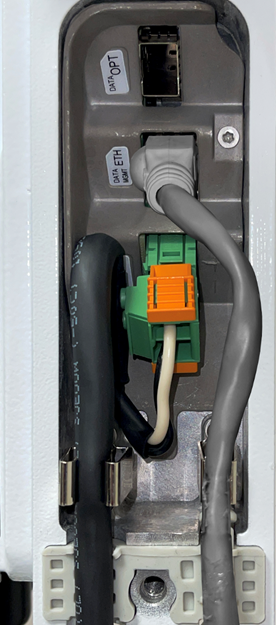
Insert the terminated Ethernet Connector (plug) into mating receptacle of the Mesh Node unit. The connector is keyed and will not insert until properly aligned. Rotate the connector until it slides into the receptacle (jack). Do not force the plug into the receptacle. Rotate the Coupling Nut until the bayonets engage and Coupling Nut locks onto the connector body. Verify that plug and receptacle are locked together.
Ethernet Cable Connection to GM02
{% endstep %}
{% step %}
Route the other end of the cable into the Mesh AP wiring cavity and terminate it with an appropriate shielded RJ45 plug.
{% endstep %}
{% step %}
Connect the assembled RJ45 plug to the ETH port of the AP.
GM02 to Mesh AP Ethernet Connection
{% endstep %}
{% endstepper %}
### Connect Power Cables
The GM02 Accessory Kit includes components to assemble cables for use in installations where the GM02 and the Mesh AP share a common power supply (Spliced Cable Assembly) and for installations where the GM02 is powered by a separate power source (Inline Splice Cable Joiner).
#### Spliced Power Cable Assembly
The Spliced Power Cable Assembly allows you to connect both the Mesh Node and Mesh AP to the 48VDC Power Adapter and surge suppressor (lightning protector) that is shipped with the G501 AP or other 48VDC power sources.
{% hint style="info" %}
**NOTE:** If the GM02 is not sharing the AP’s PSU, please see the instructions for using the Weathertight Cable Joiner to connect another 48VDC power source to the GM02 in the Inline Power Splice/Cable Joiner Assembly topic.
{% endhint %}
Spliced Cable Assembly
{% stepper %}
{% step %}
Remove the Spliced Cable Assembly from the GM02 Accessory Kit. This cable assembly includes the Tee-Shaped Cable Joiner, GM02 Power Cable, and unterminated Mesh AP Power Cable.
{% endstep %}
{% step %}
Disassemble the unused side of the Tee-Shaped Cable Joiner. Slide the Gland Nut, Seal and Gland Pipe over the wire end of the Lightning Suppressor Cable. Ensure that rubber gasket remains in both ends of the connector body.
Cable Joiner Termination
{% endstep %}
{% step %}
Insert the Green Wire of the Lightening Suppressor Cable into the Ground Contact of the Connector of the Weathertight Cable Joiner and tighten the cable clamp screw to 1.8 to 3.5 in-lbs. (0.2 to 0.4 N-m).
Tee-Cable Joiner Wire Contacts
{% endstep %}
{% step %}
Insert the White Wire of the Lightening Suppressor Cable into the Line Contact (L) of the Connector of the Weathertight Cable Joiner and tighten the cable clamp screw to 1.8 to 3.5 in-lbs. (0.2 to 0.4 N-m).
{% endstep %}
{% step %}
Insert the Black Wire of the Lightening Suppressor Cable into the Neutral Contact (N) of the Connector of the Weathertight Cable Joiner and tighten the cable clamp screw to 1.8 to 3.5 in-lbs. (0.2 to 0.4 N-m).
Lightening Suppressor Cable Conductors in Tee-Cable Joiner
{% endstep %}
{% step %}
Slide the Gland Pipe of the Cable Joiner up the Power Cable and thread onto the Connector Body of the Cable Joiner. Tighten the Gland Pipe to the Connector Body to 7 to 8 in-lbs. (0.8 to 0.9 N-m).
{% endstep %}
{% step %}
Slide the Seal of the Cable Joiner up the Power Cable and insert inside Gland Fingers of Gland Pipe installed in the last step.
{% endstep %}
{% step %}
Slide the Gland Nut of the Cable Joiner up the Power Cable and thread onto the Gland Pipe. Tighten the Gland Nut to 7 to 8 in-lbs. (0.8 to 0.9 N-m).
Tee-Cable Joiner with Lightning Suppressor Cable
{% endstep %}
{% step %}
Assemble the Mesh AP Power Terminal. Insert the white conductor into the + terminal and insert the black conductor into the – terminal and tighten both terminal screws as shown in *Figure: AP Power Terminal Assembled*.
AP Power Terminal Assembled
{% hint style="info" %}
**NOTE:** The color of the conductors may vary. If the conductors are red/black, insert the red conductor into the + terminal and insert the black conductor into the – terminal. If the conductors are brown/blue, insert the brown conductor into the + terminal and insert the blue conductor into the – terminal.
{% endhint %}
{% hint style="info" %}
**NOTE:** You have the option of routing the unterminated AP Power Cable into the wiring cavity of the AP first and then assembling the AP power terminal to make cable routing easier.
{% endhint %}
{% endstep %}
{% step %}
If the input cable to the AP Power Supply is not already terminated, install an appropriate AC power plug.
Fully Assembled Splice Cable
{% hint style="danger" %}
**WARNING:** Ensure that all RF connections are completed before powering up the AP and Mesh Node. The wireless signal transmission power can cause bodily injury and damage to the AP, Mesh Node, and RF power amplifier devices.
{% endhint %}
{% endstep %}
{% step %}
Insert the GM02 Power Cable Connector (plug) into mating receptacle of the Mesh Node unit by orienting the connector so that the release button is oriented towards the back of the unit. The connector is keyed and will not insert until properly aligned. Do not force plug into receptacle. Push until audible “click” is heard and plug and receptacle are locked together.
Connect Power Cable to GM02
{% endstep %}
{% step %}
Open the G501 AP wiring cavity with a 5mm Allen wrench, route the AP power cable (green connector) through the left-side wire groove, and plug it into the PWR interface.
Mesh AP Wiring Cavity Cabled
{% endstep %}
{% step %}
Close the wiring cavity and tighten the hex screw with a 5mm Allen wrench when the Ethernet and power connections from the GM02 to the AP are completed.
{% endstep %}
{% endstepper %}
#### Inline Power Splice/Cable Joiner Assembly
The Spliced Cable Assembly described in the previous topic simplifies the installation and operation of a GM02 Mesh Node when the Mesh Node and the Mesh AP are both powered by a common DC power source such as the AP’s power adapter. For installations where the AP and Mesh Node do not share a common power source, an additional Inline Power Splice (Weatherproof Cable Joiner) is included in the Accessory Kit to connect the GM02 Power Cable directly to a DC source. The following instructions describe the installation of that cable joiner.
{% stepper %}
{% step %}
Remove the Spliced Cable Assembly and Inline Splice Cable Joiner from the Accessory Kit.
{% endstep %}
{% step %}
Disassemble the Tee-Shaped Cable Joiner to remove the GM02 Power Cable and set the Tee-Shaped Cable Joiner aside.
{% endstep %}
{% step %}
Disassemble one side of the Inline Splice Cable Joiner. Slide the Gland Nut, Seal and Gland Pipe over the wire end of the GM02 Power Cable. Ensure that rubber gasket remains in both ends of the Connector Body.
Weathertight Cable Joiner
{% endstep %}
{% step %}
Insert the Green Wire of the Power Cable into the Ground Contact () of the Connector of the Weathertight Cable Joiner and tighten the cable clamp screw to 1.8 to 3.5 in-lbs. (0.2 to 0.4 N-m).
Cable Joiner Contacts
{% endstep %}
{% step %}
Insert the White Wire of the Power Cable into the Line Contact (L) of the Connector of the Weathertight Cable Joiner and tighten the cable clamp screw to 1.8 to 3.5 in-lbs. (0.2 to 0.4 N-m).
{% endstep %}
{% step %}
Insert the Black Wire of the Power Cable into the Neutral Contact (N) of the Connector of the Weathertight Cable Joiner and tighten the cable clamp screw to 1.8 to 3.5 in-lbs. (0.2 to 0.4 N-m).
{% endstep %}
{% step %}
Slide the Gland Pipe of the Cable Joiner up the Power Cable and thread onto the Connector Body of the Cable Joiner. Tighten the Gland Pipe to the Connector Body to 7 to 8 in-lbs. (0.8 to 0.9 N-m).
Cable Joiner Connector
{% endstep %}
{% step %}
Slide the Seal of the Cable Joiner up the Power Cable and insert inside Gland Fingers of Gland Pipe installed in the last step.
{% endstep %}
{% step %}
Slide the Gland Nut of the Cable Joiner up the Power Cable and thread onto the Gland Pipe. Tighten the Gland Nut to 7 to 8 in-lbs. (0.8 to 0.9 N-m).
{% endstep %}
{% step %}
The same termination sequence as documented in Steps 3 to 9 should be applied to the termination of the 48VDC line by the installer. An Earth Ground Wire should be connected to the Ground Contact , a +48VDC Wire should be connected to the Line Contact (L), and a 0VDC Wire should be connected to the Neutral Contact (N) of the Cable Joiner Connector.
{% endstep %}
{% step %}
Insert the GM02 Power Cable Connector (plug) into mating receptacle of the Mesh Node unit by orienting the connector so that the release button is oriented towards the back of the unit. The connector is keyed and will not insert until properly aligned. Do not force plug into receptacle. Push until audible “click” is heard and plug and receptacle are locked together.
{% stepper %}
{% step %}
Remove the protective caps from the Type-N RF Connector Ports labeled “SC PORT0” and “SC PORT1” and connect Type-N Patch Cables from these connectors to the AP’s Ports (e.g. “ANT0” and “ANT1”). Tighten the Type-N Connectors to 12 in-lbs. +/- 10% (1.36 N-m +/- 10%).
Connect SC PORT0 and SC PORT1
{% endstep %}
{% step %}
Remove the protective caps from the GM02 Mesh Node Type-N RF Connector Ports labeled “SC ANT0” and “SC ANT1” and connect Type-N Patch Cables from these connectors to the input ports of the Sector Antenna (antenna providing CBRS cellular coverage for the sector). Tighten Type-N Connectors to 12 in-lbs. +/- 10% (1.36 N-m +/- 10%).
Connect SC ANT0 and SC ANT1
{% endstep %}
{% step %}
Remove the protective caps from GM02 Mesh Node Type-N RF Connector Ports labeled “CPE ANT0” and “CPE ANT1” and connect Type-N Patch Cables from these connectors to the input ports of the Backhaul Antenna. Tighten Type-N Connectors to 12 in-lbs. +/- 10% (1.36 N-m +/- 10%).
Connect CPE ANT0 and CPE ANT1
{% endstep %}
{% step %}
Seal each of the RF Connectors using Cold Shrink, Heat Shrink, Self-Fusing (Butyl) Tape, or similar, wrapping each from the Mesh Node to approximately 1 inch below the ferrule heat shrink of the cable or similar.
{% endstep %}
{% endstepper %}
## Power on to Check LED Status
{% hint style="danger" %}
**WARNING:** Ensure the antennas are connected to the ANT ports before powering up the Mesh Node and the Mesh AP. The wireless signal transmission power from the AP can cause bodily injury and damage to the GM02 and RF power amplifier devices.
{% endhint %}
Power on the Mesh Node and check that the LED indicators are lighting as expected, all three LEDs should be green in normal operation.
Check LEDs
---
# Agent Instructions
This documentation is published with GitBook. GitBook is the documentation platform designed so that both humans and AI agents can read, navigate, and reason over technical content effectively. Learn more at gitbook.com.
## Querying This Documentation
If you need additional information that is not directly available in this page, you can query the documentation by asking a question.
Perform an HTTP GET request on the following URL with the `ask` and `goal` query parameters:
```
GET https://docs.gxc.io/hw/lte/4g-mesh-nodes/gm02/gm02-mesh-node-installation-guide/installation.md?ask=&goal=
```
`ask` is the immediate question: it should be specific, self-contained, and written in natural language.
`goal` is what the user is ultimately trying to achieve, the reason they need the answer. Sharing it helps GitBook give you a better, more relevant answer. A goal is most helpful when it describes the outcome the user wants rather than restating the question. For example, with `ask=how do I create an API token`, a goal like `automate deployments from our CI pipeline` lets GitBook tailor the answer to that use case.
The response will contain a direct answer to the question and relevant excerpts and sources from the documentation.
Use this mechanism when the answer is not explicitly present in the current page, you need clarification or additional context, or you want to retrieve related documentation sections.


 |
| -------------------------------------------------------------------------------------------------------------------------------------------------------------------------------------------------------------------------------------------------------------------------------------------------------------------------------------------------------------------------------------------------------------------------------------------------------------------------------------------------------------------------------------------------------- | --------------------------------------------------------------------------------------------------------------------------------------------------------------------------------------------------------------------------------------------------------- |
|
|
| -------------------------------------------------------------------------------------------------------------------------------------------------------------------------------------------------------------------------------------------------------------------------------------------------------------------------------------------------------------------------------------------------------------------------------------------------------------------------------------------------------------------------------------------------------- | --------------------------------------------------------------------------------------------------------------------------------------------------------------------------------------------------------------------------------------------------------- |
|  |
|
|
|  |
## Mount GM02 Mesh Node on Wall
The following topics describe how to mount the GM02 Mesh Node on a wall. The following topics cover mounting the GM02 Bracket to concrete block, solid concrete, and wood/steel framed structural walls.
### Assembly for Mounting Mesh Node to Block or Solid Concrete Walls
The GXC assembly configuration for mounting a Mesh Node to a concrete block wall or a solid concrete wall is described in the following topics.
{% hint style="info" %}
**NOTE:** When installing the Mesh Node to a concrete wall made of either concrete block or solid concrete, use of a hammer drill with a carbide tip is recommended. Care must be taken to drill and install the necessary fasteners. Concrete blocks are generally hollow and brittle. Both concrete block and concrete can be inconsistent in quality. Holding values depend on the quality of the block and concrete and the mortar placed in the joints between the blocks. Do not install into spalled, cracked, or otherwise questionable quality concrete or concrete block.
{% endhint %}
|
## Mount GM02 Mesh Node on Wall
The following topics describe how to mount the GM02 Mesh Node on a wall. The following topics cover mounting the GM02 Bracket to concrete block, solid concrete, and wood/steel framed structural walls.
### Assembly for Mounting Mesh Node to Block or Solid Concrete Walls
The GXC assembly configuration for mounting a Mesh Node to a concrete block wall or a solid concrete wall is described in the following topics.
{% hint style="info" %}
**NOTE:** When installing the Mesh Node to a concrete wall made of either concrete block or solid concrete, use of a hammer drill with a carbide tip is recommended. Care must be taken to drill and install the necessary fasteners. Concrete blocks are generally hollow and brittle. Both concrete block and concrete can be inconsistent in quality. Holding values depend on the quality of the block and concrete and the mortar placed in the joints between the blocks. Do not install into spalled, cracked, or otherwise questionable quality concrete or concrete block.
{% endhint %}


 of the Connector of the Weathertight Cable Joiner and tighten the cable clamp screw to 1.8 to 3.5 in-lbs. (0.2 to 0.4 N-m).



 ) of the Connector of the Weathertight Cable Joiner and tighten the cable clamp screw to 1.8 to 3.5 in-lbs. (0.2 to 0.4 N-m).


 , a +48VDC Wire should be connected to the Line Contact (L), and a 0VDC Wire should be connected to the Neutral Contact (N) of the Cable Joiner Connector.
{% endstep %}
{% step %}
Insert the GM02 Power Cable Connector (plug) into mating receptacle of the Mesh Node unit by orienting the connector so that the release button is oriented towards the back of the unit. The connector is keyed and will not insert until properly aligned. Do not force plug into receptacle. Push until audible “click” is heard and plug and receptacle are locked together.
, a +48VDC Wire should be connected to the Line Contact (L), and a 0VDC Wire should be connected to the Neutral Contact (N) of the Cable Joiner Connector.
{% endstep %}
{% step %}
Insert the GM02 Power Cable Connector (plug) into mating receptacle of the Mesh Node unit by orienting the connector so that the release button is oriented towards the back of the unit. The connector is keyed and will not insert until properly aligned. Do not force plug into receptacle. Push until audible “click” is heard and plug and receptacle are locked together.


