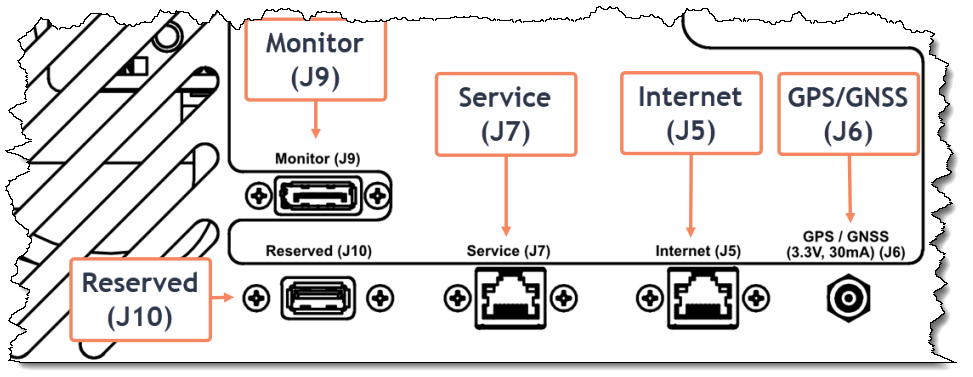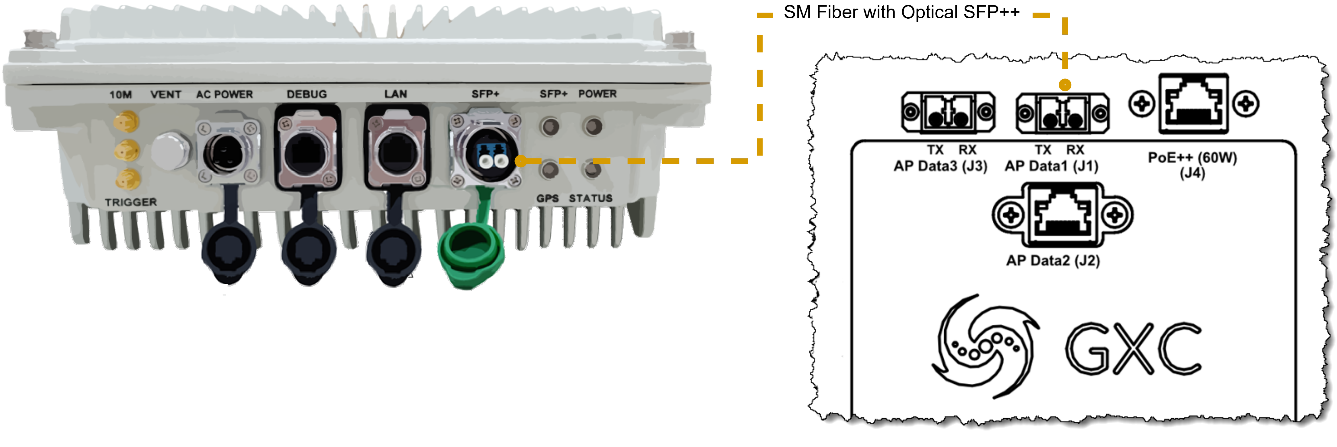
MNG internal connections
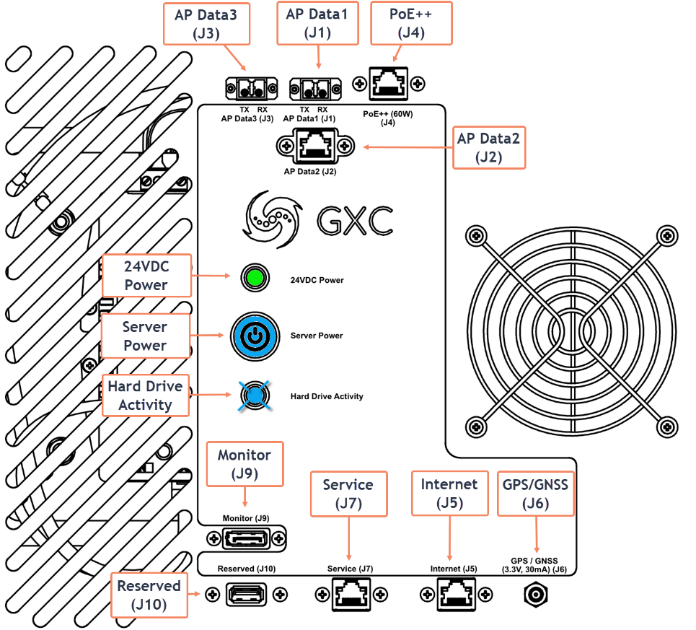 **AP Connections**
* J1-J3 are used for connecting GXC approved APs.
* J3 is a 10GbE fiber port (LC, single-mode, long-reach)
* J1 is a 10GbE fiber port (LC, single-mode, long-reach)
* J2 is a 10GbE copper port (RJ45; 10G up to 30 m)
{% hint style="info" %}
**NOTE:** A SM LC-LC fiber cable is provided in the Accessories box included with the AP selected by the customer during the kit ordering process.
{% endhint %}
{% hint style="info" %}
**NOTE:** The MNG is capable of supporting up to 3 APs simultaneously.
{% endhint %}
* J4 is a PoE++ (60W) Ethernet RJ45 power only port (No Data Link)
#### Example AP combinations
**AP Connections**
* J1-J3 are used for connecting GXC approved APs.
* J3 is a 10GbE fiber port (LC, single-mode, long-reach)
* J1 is a 10GbE fiber port (LC, single-mode, long-reach)
* J2 is a 10GbE copper port (RJ45; 10G up to 30 m)
{% hint style="info" %}
**NOTE:** A SM LC-LC fiber cable is provided in the Accessories box included with the AP selected by the customer during the kit ordering process.
{% endhint %}
{% hint style="info" %}
**NOTE:** The MNG is capable of supporting up to 3 APs simultaneously.
{% endhint %}
* J4 is a PoE++ (60W) Ethernet RJ45 power only port (No Data Link)
#### Example AP combinations
AP Connections
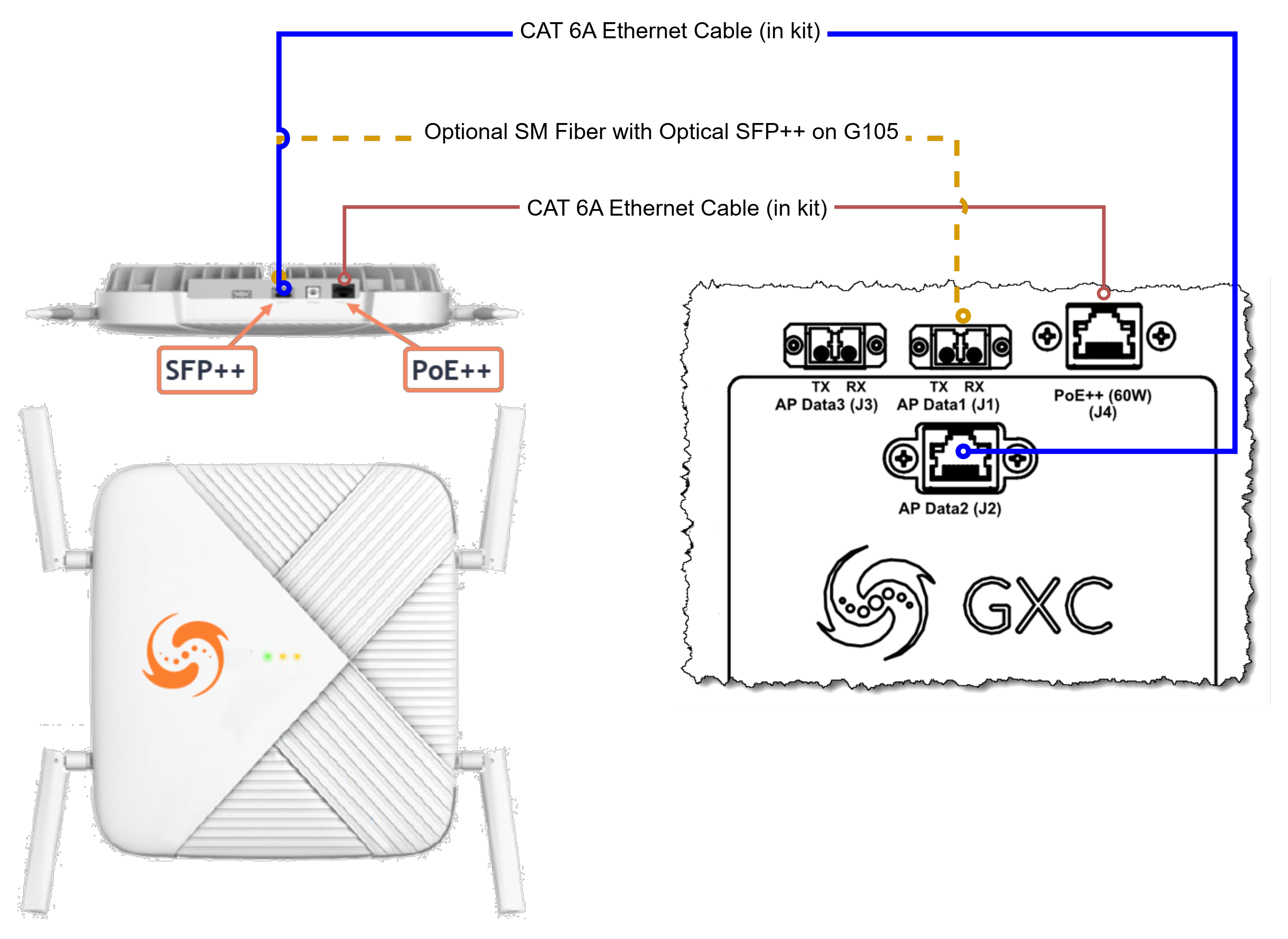
 Refer to the figure above for the combinations described below. ### G105 Using the supplied blue (data) and orange (power) Ethernet cables, make the connections as shown below. A dual SM LC fiber with an SFP++ can be used for the data connection as well and use either J1 (as shown) or J3.G105 to MNG using PoE++ power
 {% hint style="info" %}
**NOTE:** If the G105 is ordered with the MNG-00X and a CAT 6A cable is used for the Data connection as shown in the figure above, obtain the Copper SFP++ from the MNG-00X included in the contents of the kit.
{% endhint %}
{% hint style="info" %}
**NOTE:** When using the RJ45 (J2) there is a 30m limitation. When ordering the G105, a PoE injector, a 9m SM LC fiber cable, and 2 fiber SFP++ devices are included (only 1 is required for this kit) to allow the use of the **optional** fiber connection described in the figure above.
{% endhint %}
### G505
In the figure below, the G505 is shown connected to J1 but can be connected to J3 as well.
{% hint style="info" %}
**NOTE:** If the G105 is ordered with the MNG-00X and a CAT 6A cable is used for the Data connection as shown in the figure above, obtain the Copper SFP++ from the MNG-00X included in the contents of the kit.
{% endhint %}
{% hint style="info" %}
**NOTE:** When using the RJ45 (J2) there is a 30m limitation. When ordering the G105, a PoE injector, a 9m SM LC fiber cable, and 2 fiber SFP++ devices are included (only 1 is required for this kit) to allow the use of the **optional** fiber connection described in the figure above.
{% endhint %}
### G505
In the figure below, the G505 is shown connected to J1 but can be connected to J3 as well.
G505 Connection to the MNG
G506 Connection to the MNG
 {% hint style="info" %} **NOTE:** Use one of the provided SM LC SFP++ and LC-to-LC fiber patch cable in the AP accessories box for this connection. {% endhint %} ### External Case ConnectionsAC Power Port at Rear of Case (example)
 {% stepper %} {% step %} Connect the 4 prong plug to the AC power port located at the rear of the case. {% hint style="warning" %} **CAUTION:** Insert the power connection with the flat side of the barrel facing up. When inserted fully, an audible “click” should be heard signifying the connector is locked in place. {% endhint %} {% hint style="warning" %} **CAUTION:** When removing the power connection, only remove it by firmly grasping the barrel portion of the connector. This will disengage the locking mechanism allowing it to be safely removed. {% endhint %} {% endstep %} {% step %} Apply AC power by connecting the AC-DC power to a suitable AC outlet. The 24VDC power LED should indicate green as shown in the figure below.MNG Green 24VDC LED

Optional Connections