> For the complete documentation index, see [llms.txt](https://docs.gxc.io/llms.txt). Markdown versions of documentation pages are available by appending `.md` to page URLs; this page is available as [Markdown](https://docs.gxc.io/hw/5g/5g-gnb/g228-n48-n77-n78/g228-hardware-installation-guide.md).

# G228 Hardware Installation Guide

## About This Guide

This guide walks through the physical installation of the G228 5G NR small cell: unboxing, cable connections, mounting to a pole or wall, grounding. It's intended for field technicians and installation partners deploying G228 units on a GXC private 5G network.

{% hint style="danger" %}
**RF safety:** Maintain a minimum of **0.3 meters (30 cm)** clearance between the antenna and any person while the unit is powered and transmitting, to stay within CE MPE (Maximum Permissible Exposure) limits.&#x20;
{% endhint %}

## What's in the Box

**Standard box contents:**

| Item                           | Qty |
| ------------------------------ | --- |
| G228 AP                        | 1   |
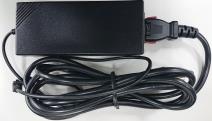
| Indoor PSU                     | 1   |
| 1 m AC power cord (EU/US plug) | 1   |
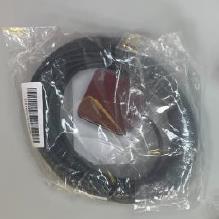
| GPS antenna with 7 m cable     | 1   |

**Installation Accessory Kit:**

| Item                                                                          | Qty |
| ----------------------------------------------------------------------------- | --- |
| Outdoor wall/pole mounting kit                                                | 1   |
| PSU bracket                                                                   | 1   |
| Outdoor PSU                                                                   | 1   |
| Cable gland                                                                   | 2   |
| 3 m grounding cable                                                           | 1   |
| 3 m AC power cord (EU/US plug)                                                | 1   |
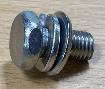
| Screws (2 for securing the outdoor PSU to the bracket, 1 for the ground wire) | 3   |

| <img src="https://4084968256-files.gitbook.io/~/files/v0/b/gitbook-x-prod.appspot.com/o/spaces%2FgSxa0NIdBp5aDw7Lf2N9%2Fuploads%2F8MpRDezl5msdmoIFMeB6%2FG228.jpg?alt=media&amp;token=a2d973f4-5e92-4971-946b-6e7b4d286a3f" alt="SCU2140 unit" data-size="original"> | <img src="https://content.gitbook.com/content/gSxa0NIdBp5aDw7Lf2N9/blobs/GuwtxF0JiwZpbdIeESch/images/scu2140-item-indoor-psu.jpg" alt="Indoor PSU" data-size="original"> | <img src="https://content.gitbook.com/content/gSxa0NIdBp5aDw7Lf2N9/blobs/jX3yeFuKlYBjFLcBq77d/images/scu2140-item-gps-antenna.jpg" alt="GPS antenna, 7 m cable" data-size="original"> | <img src="https://4084968256-files.gitbook.io/~/files/v0/b/gitbook-x-prod.appspot.com/o/spaces%2FgSxa0NIdBp5aDw7Lf2N9%2Fuploads%2FOjy3YFH8kwvxZ3nU1QT9%2FG228_w-power.jpg?alt=media&amp;token=9d9fb30c-37b7-4b86-9092-c21840456305" alt="Outdoor accessory kit" data-size="original"> |
| -------------------------------------------------------------------------------------------------------------------------------------------------------------------------------------------------------------------------------------------------------------------- | ------------------------------------------------------------------------------------------------------------------------------------------------------------------------ | ------------------------------------------------------------------------------------------------------------------------------------------------------------------------------------- | ------------------------------------------------------------------------------------------------------------------------------------------------------------------------------------------------------------------------------------------------------------------------------------- |

## IO Interfaces and Connections

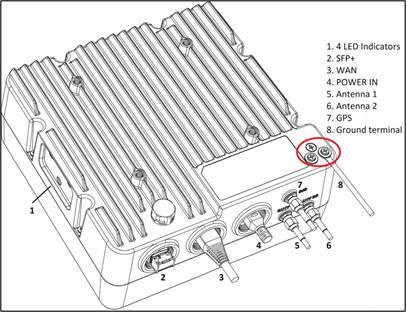
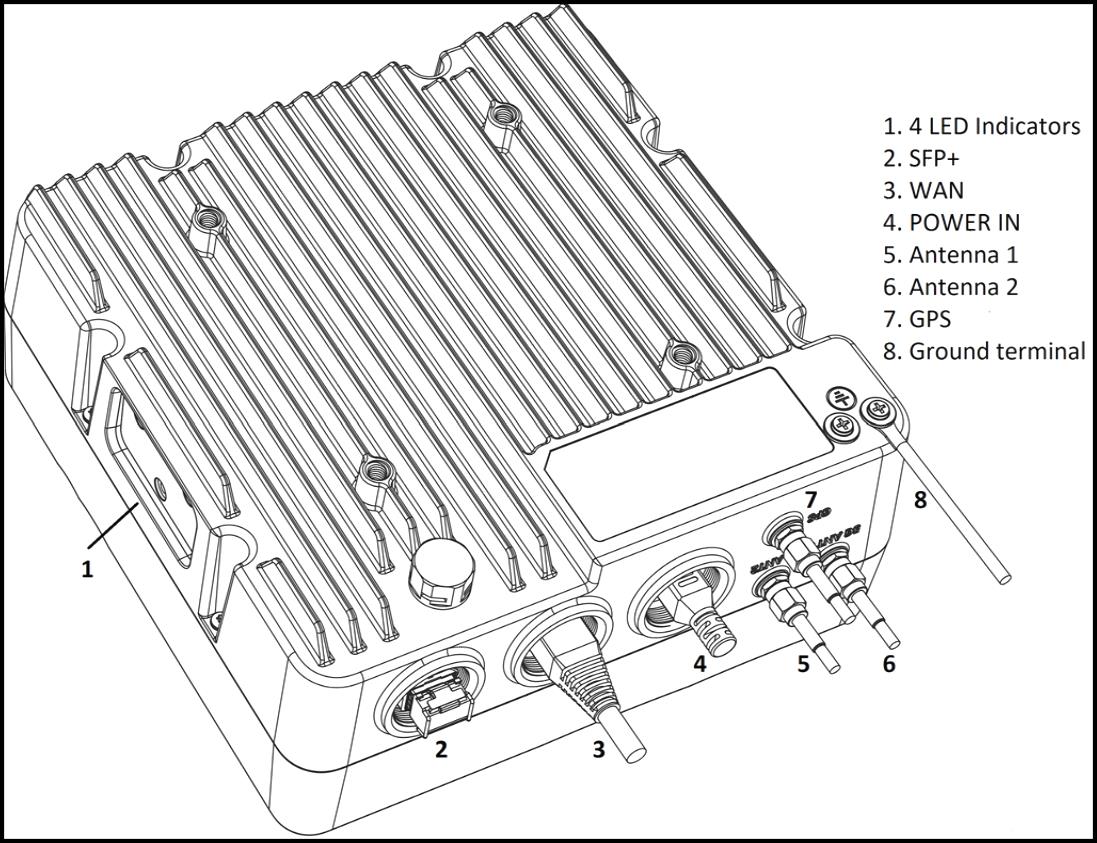
<figure><img src="https://content.gitbook.com/content/gSxa0NIdBp5aDw7Lf2N9/blobs/Godvn78UoqQZVKrbGm0q/images/scu2140-fig02-io-interfaces.jpg" alt="SCU2140 IO interfaces: LED indicators, SFP+, WAN, power, antennas, GPS, and ground terminal" width="563"><figcaption><p>IO interfaces (default mode)</p></figcaption></figure>

| Interface             | Description                                                                                                                             |
| --------------------- | --------------------------------------------------------------------------------------------------------------------------------------- |
| 4 LED indicators      | Show unit status: Power / Service / Status / GPS                                                                                        |
| SFP+                  | Fiber connection to switch or router                                                                                                    |
| WAN                   | Ethernet connection to switch or router                                                                                                 |
| POWER IN              | Power supply input                                                                                                                      |
| Antenna 1 / Antenna 2 | 5G external antenna ports (the unit ships with two internal 5G antennas by default — external ports are for optional external antennas) |
| GPS                   | External GPS antenna port (the unit ships with an internal GPS antenna by default)                                                      |
| Ground terminal       | Ground wire connection point                                                                                                            |

## Setup Procedure

1. Confirm the equipment and accessories in the box are complete.
2. Connect the Ethernet cable or fiber to the switch or router, place the GPS antenna in an open location without shelter, and plug in the power.
3. Check whether the G228 is working normally from the LED status.
4. Mount the unit to the wall or pole (see installation below).
5. Power the unit on again and check whether it's working normally from the LED status.
   * **Not working?** Read the LED status to troubleshoot.
6. Done.

## Cable Connection

Connect the Ethernet cable or fiber, then the power cable, as shown above in the IO and Interfaces Image

{% hint style="warning" %}
If using fiber transmission, an SFP module and fiber are required. The highest operating temperature specification of the 1G SFP module must be workable at a minimum of 85°C.
{% endhint %}

## Installation

{% hint style="danger" %}
Avoid installing the base station where extreme temperatures, harmful gases, voltage instability, loud noise, flames, explosives, or electromagnetic interference may be present (for example, near large radar stations or substations).
{% endhint %}

The G228, GPS antenna, external antenna, and RJ45 connection port must be protected from lightning strikes. The base station has a grounding screw on the underside of the unit — connect it to a reliable outdoor grounding point using a yellow-green grounding wire, and treat the terminals against rust with anti-rust paint, anti-oxidation coating, grease, or similar.

There are two ways to install the SCU2140: **wall mount** and **pole mount**.

**Wall/Pole Mount Bracket Kit contents:**

| Item                                                         | Qty |
| ------------------------------------------------------------ | --- |
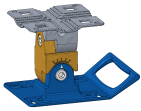
| Mounting kit (wall/pole mount kit with mounting accessories) | 1   |
| M6 screws (for mounting kit installation)                    | 4   |
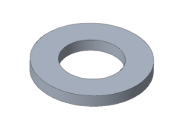
| Plastic washers (for mounting kit installation)              | 4   |
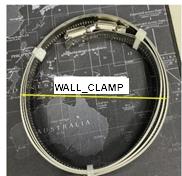
| Wall clamp (for pole mount installation)                     | 2   |
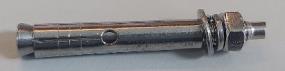
| M6 expansion screw                                           | 4   |

| <img src="https://content.gitbook.com/content/gSxa0NIdBp5aDw7Lf2N9/blobs/B7RrjuXKEH8dyJyPSn3Z/images/scu2140-kit-mounting-kit.png" alt="Mounting kit" data-size="original"> | <img src="https://content.gitbook.com/content/gSxa0NIdBp5aDw7Lf2N9/blobs/pDapxJcO4oLHzYYBnXyu/images/scu2140-kit-m6-screw.jpg" alt="M6 screw" data-size="original"> | <img src="https://content.gitbook.com/content/gSxa0NIdBp5aDw7Lf2N9/blobs/Tg7jc5YgoMcCJu5nFbxa/images/scu2140-kit-plastic-washer.png" alt="Plastic washer" data-size="original"> | <img src="https://content.gitbook.com/content/gSxa0NIdBp5aDw7Lf2N9/blobs/zHkEfQsQDdSTPFBGzKK3/images/scu2140-kit-wall-clamp.jpg" alt="Wall clamp" data-size="original"> | <img src="https://content.gitbook.com/content/gSxa0NIdBp5aDw7Lf2N9/blobs/3Q1cSncEWtc9UoZqsXrI/images/scu2140-kit-m6-expansion-screw.jpg" alt="M6 expansion screw" data-size="original"> |
| --------------------------------------------------------------------------------------------------------------------------------------------------------------------------- | ------------------------------------------------------------------------------------------------------------------------------------------------------------------- | ------------------------------------------------------------------------------------------------------------------------------------------------------------------------------- | ----------------------------------------------------------------------------------------------------------------------------------------------------------------------- | --------------------------------------------------------------------------------------------------------------------------------------------------------------------------------------- |

### Install the Mount Base to the Device

Use the M6 screws and washers to fix the mount base to the device.
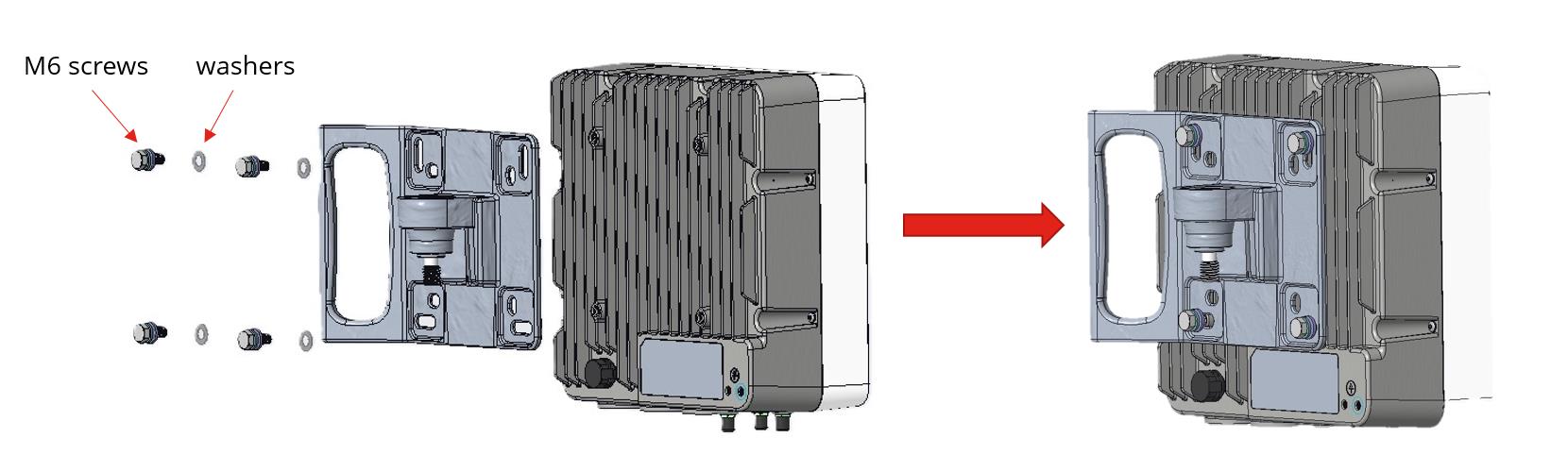
<div data-with-frame="true"><figure><img src="https://content.gitbook.com/content/gSxa0NIdBp5aDw7Lf2N9/blobs/0mDtSdmW4b05KI4CKp1E/images/scu2140-fig06-mount-base.jpg" alt="Installing the mount base onto the SCU2140 device with M6 screws and washers" width="563"><figcaption></figcaption></figure></div>

### Pole Mount

Before installing the base station on a pole, confirm the pole diameter is compatible with the mounting kit.

{% stepper %}
{% step %}
Check that the pole bracket installation accessories are complete.
{% endstep %}

{% step %}
Secure the wall/pole mount kit to the pole using the metal straps.

<div data-with-frame="true"><figure><img src="https://4084968256-files.gitbook.io/~/files/v0/b/gitbook-x-prod.appspot.com/o/spaces%2FgSxa0NIdBp5aDw7Lf2N9%2Fuploads%2F6NL1862tMmV80YhgWVyC%2Fimage.png?alt=media&amp;token=bb80d953-af45-4e74-b831-8b98b30ba44f" alt="" width="563"><figcaption></figcaption></figure></div>
{% endstep %}

{% step %}
Vertically assemble the device (with mount base attached) onto the shaft hole of the wall/pole mount kit.

<div data-with-frame="true"><figure><img src="https://4084968256-files.gitbook.io/~/files/v0/b/gitbook-x-prod.appspot.com/o/spaces%2FgSxa0NIdBp5aDw7Lf2N9%2Fuploads%2FWXvvMekt3ECtm86vTEKw%2Fimage.png?alt=media&amp;token=50eeb755-5791-4e03-b7c5-67b35f7ca2bf" alt="" width="293"><figcaption></figcaption></figure></div>
{% endstep %}

{% step %}
After adjusting the direction and angle of the device, tighten the M10 and M6 screws.

<div data-with-frame="true"><figure><img src="https://4084968256-files.gitbook.io/~/files/v0/b/gitbook-x-prod.appspot.com/o/spaces%2FgSxa0NIdBp5aDw7Lf2N9%2Fuploads%2FDJG9zX3CQW4xppQedCDG%2FG228_pole%20image.jpg?alt=media&amp;token=ae7a8cb6-a1da-4f44-ab0a-f0762353898b" alt="" width="563"><figcaption></figcaption></figure></div>
{% endstep %}
{% endstepper %}

### Wall Mount

Before installing the G228 on an exterior wall, make sure the wall can support at least **4 times** the weight of the base station (unit approximately 3 kg).

{% stepper %}
{% step %}
Check that the wall mounting accessories are complete.
{% endstep %}

{% step %}
Secure the wall/pole mount kit to the wall using the M6 expansion screws.

<div data-with-frame="true"><figure><img src="https://4084968256-files.gitbook.io/~/files/v0/b/gitbook-x-prod.appspot.com/o/spaces%2FgSxa0NIdBp5aDw7Lf2N9%2Fuploads%2F1C2HPJs98KgSqUWexGwx%2Fimage.png?alt=media&amp;token=c1f02823-c118-41ba-b046-2137e70e3500" alt="" width="563"><figcaption></figcaption></figure></div>
{% endstep %}

{% step %}
Vertically assemble the device (with mount base attached) onto the shaft hole of the wall/pole mount kit.

<div data-with-frame="true"><figure><img src="https://4084968256-files.gitbook.io/~/files/v0/b/gitbook-x-prod.appspot.com/o/spaces%2FgSxa0NIdBp5aDw7Lf2N9%2Fuploads%2F1uTa2wCUVVoqeFAvBXnL%2Fimage.png?alt=media&amp;token=59615fe9-105f-45cf-9d60-b94f2badea23" alt="" width="433"><figcaption></figcaption></figure></div>
{% endstep %}

{% step %}
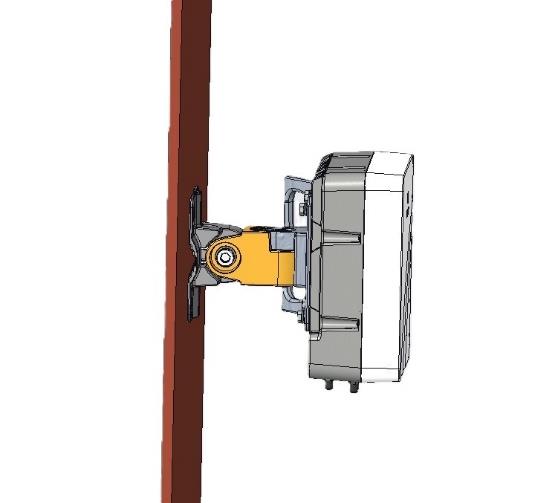
After adjusting the direction and angle of the device, tighten the M10 and M6 screws.

<div data-with-frame="true"><figure><img src="https://4084968256-files.gitbook.io/~/files/v0/b/gitbook-x-prod.appspot.com/o/spaces%2FgSxa0NIdBp5aDw7Lf2N9%2Fuploads%2FkldVZjetBwNucUKbyn7c%2Fimage.png?alt=media&amp;token=29bda1ae-d0ef-4347-b0b5-83d7cf43e6fb" alt="" width="416"><figcaption></figcaption></figure></div>
{% endstep %}
{% endstepper %}

**Step 4.** After adjusting the direction and angle of the device, tighten the M10 and M6 screws.

<div data-with-frame="true"><figure><img src="https://content.gitbook.com/content/gSxa0NIdBp5aDw7Lf2N9/blobs/vBnEAeyYCnkGO3TqfYke/images/scu2140-fig12-adjust-angle-wall.jpg" alt="Adjusting the direction and angle of the device on the wall mount" width="375"><figcaption></figcaption></figure></div>

## Grounding and Lightning Protection

* Unscrew the ground screw and connect one end of the ground wire to the ground screw on the base station.
* Connect the other end of the ground wire to a reliable outdoor ground point.

<div data-with-frame="true"><figure><img src="https://4084968256-files.gitbook.io/~/files/v0/b/gitbook-x-prod.appspot.com/o/spaces%2FgSxa0NIdBp5aDw7Lf2N9%2Fuploads%2FLDGOMyigKlrfpSVpskBb%2Fimage.png?alt=media&amp;token=bd8dc1a8-19e1-4b4c-9e20-49794c6bdaa3" alt="" width="380"><figcaption></figcaption></figure></div>

{% hint style="info" %}
The device has two grounding terminals, but only one is required — the other is provided as a spare.
{% endhint %}

### Supplemental Note

The Outdoor Installation Accessory Kit includes three screws: two for securing the outdoor PSU to the bracket, and one for securing the ground wire to the base station.

| <img src="https://4084968256-files.gitbook.io/~/files/v0/b/gitbook-x-prod.appspot.com/o/spaces%2FgSxa0NIdBp5aDw7Lf2N9%2Fuploads%2FLTKiMrm0551TpWgkqTZo%2FG228%20sup%20note.jpg?alt=media&amp;token=70a74c15-cca8-43c3-974f-26ac3fb9f16a" alt="Outdoor PSU bracket screws" data-size="original"> | <img src="https://content.gitbook.com/content/gSxa0NIdBp5aDw7Lf2N9/blobs/MrU49E5aJg209QUAKWJL/images/scu2140-fig14-ground-terminal.jpg" alt="Ground terminal (spare shown circled)" data-size="original"> |
| ----------------------------------------------------------------------------------------------------------------------------------------------------------------------------------------------------------------------------------------------------------------------------------------------- | --------------------------------------------------------------------------------------------------------------------------------------------------------------------------------------------------------- |

## Route the Cables

After installation is complete, connect the cables to the G228 and route them following standard cable management practices for a neat, secure installation. Power on the unit and check the LED indicators to confirm it's operating normally.

## Safety Warning

{% hint style="danger" %}
To ensure compliance with CE MPE (Maximum Permissible Exposure) requirements, maintain a minimum distance of **0.3 meters (30 cm)** or more between the antenna and the human body when using this device. Failure to observe this distance may result in non-compliance with RF safety standards.
{% endhint %}


---

# Agent Instructions
This documentation is published with GitBook. GitBook is the documentation platform designed so that both humans and AI agents can read, navigate, and reason over technical content effectively. Learn more at gitbook.com.

## Querying This Documentation
If you need additional information that is not directly available in this page, you can query the documentation by asking a question.

Perform an HTTP GET request on the following URL with the `ask` and `goal` query parameters:

```
GET https://docs.gxc.io/hw/5g/5g-gnb/g228-n48-n77-n78/g228-hardware-installation-guide.md?ask=<question>&goal=<user_goal>
```

`ask` is the immediate question: it should be specific, self-contained, and written in natural language.
`goal` is what the user is ultimately trying to achieve, the reason they need the answer. Sharing it helps GitBook give you a better, more relevant answer. A goal is most helpful when it describes the outcome the user wants rather than restating the question. For example, with `ask=how do I create an API token`, a goal like `automate deployments from our CI pipeline` lets GitBook tailor the answer to that use case.

The response will contain a direct answer to the question and relevant excerpts and sources from the documentation.

Use this mechanism when the answer is not explicitly present in the current page, you need clarification or additional context, or you want to retrieve related documentation sections.