> For the complete documentation index, see [llms.txt](https://docs.gxc.io/llms.txt). Markdown versions of documentation pages are available by appending `.md` to page URLs; this page is available as [Markdown](https://docs.gxc.io/hw/5g/5g-access-points/g505/g505-ap-hardware-installation-guide.md).
# G505 AP Hardware Installation Guide
## About this Guide
This guide provides the information you need to install a GXC G505 RU. It also includes a general description of the unit, guidelines for using it, and an overview of its capabilities.
{% hint style="info" %}
**NOTE:** Installation of this device should only be performed by a licensed Certified Professional Installer (CPI) per limitations set forth in FCC Part 96 CBRS band, as well as guidelines as summarized by the OnGo Alliance.
{% endhint %}
In this guide, the GXC G505 may be referred to as an Access Point (AP), Radio Unit (RU), Remote Radio Unit (RRU), and Open Radio Unit (ORU).
### General Active RF Installation Instructions
Only experienced installation professionals who are familiar with local building and safety codes, and wherever applicable, are licensed by the appropriate government regulatory authorities should install RF devices and antennas. Failure to do so may void the product warranty and may expose the end user to legal and financial liabilities. The manufacturer and its resellers or distributors are not liable for injury, damage or regulation violations associated with the installation of RF devices or antennas.
{% hint style="info" %}
**NOTE:** The G505 RU is designed to be installed and operated outdoors to conform to CBSD - FCC specifications.
{% endhint %}
{% hint style="info" %}
**NOTE:** Prior to installation, locate the Product ID Label and record the serial number and MAC address of the unit and the proposed installation location in a material registry / equipment journal for future reference.
{% endhint %}
### Safety Information
{% hint style="danger" %}
## **WARNING:** Read the installation instructions before connecting the system to its power source.
{% endhint %}
{% hint style="danger" %}
## **WARNING:** Equipment installation must comply with local and national electrical codes
{% endhint %}
{% hint style="danger" %}
## **WARNING:** This product relies on the existing building or structure for short-circuit (overcurrent) protection. Ensure that the protective device is rated no greater than 15A
{% endhint %}
{% hint style="danger" %}
## **WARNING:** Do not operate this wireless network device near unshielded blasting caps or in an explosive environment. Explosions or fires may occur if installed in these environments
{% endhint %}
{% hint style="danger" %}
## **WARNING:** Do not operate this wireless network device near unshielded blasting caps or in an explosive environment. Explosions or fires may occur if installed in these environments
{% endhint %}
{% hint style="danger" %}
## **WARNING:** In order to comply with the United States Federal Communications Commission (FCC) radio frequency (RF) exposure limits, antennas should be located at a minimum of 83 centimeters (33 inches) or more from the body of all persons.
{% endhint %}
#### Country Safety Statements
**EU: Electromagnetic Fields (Directive 2014/53/EU)**
European Council Recommendation 2014/53/EU details basic restrictions and reference levels on human exposure to electromagnetic fields as advised by the ICNIRP. Adherence to these recommended restrictions and reference levels should provide a high level of protection as regards the established health effects that may result from exposure to electromagnetic fields.
**CE: RF EXPOSURE STATEMENT**
To comply with RF Exposure requirements, this equipment should be installed and operated at a minimum distance of 107 cm between the radiating device and your body.
**UK: Hazardous Substance Notice**
This product does not contain hazardous substances (as defined in UK Control of Substances Hazardous to Health Regulations 1989 and the Dangerous Substances Regulations 1990). At the end of this product's life cycle, the customer should consult with the system integrator to ensure that the product is disposed of in conformance with the relevant regulatory requirements.
**EU: Waste from Electrical and Electronic Equipment (WEEE)**
This symbol means that according to local laws and regulations your product and/or its battery shall be disposed of separately from household waste. When this product reaches its end of life, take it to a collection point designated by local authorities. Proper recycling of your product will protect human health and the environment.
**USA: Federal Communications Commission**
This device complies with part 15 of the FCC Rules. Operation is subject to the following two conditions: (1) This device may not cause harmful interference, and (2) this device must accept any interference received, including interference that may cause undesired operation. The antenna(s) used for this transmitter must be installed to provide a separation distance of at least 107 cm from all people.
{% hint style="info" %}
**NOTE:** This equipment has been tested and found to comply with the limits for a Class B digital device, pursuant to part 15 of the FCC Rules. These limits are designed to provide reasonable protection against harmful interference in a residential installation. This equipment generates, uses and can radiate radio frequency energy and, if not installed and used in accordance with the instructions, may cause harmful interference to radio communications. However, there is no guarantee that interference will not occur in a particular installation. If this equipment does cause harmful interference to radio or television reception, which can be determined by turning the equipment off and on, the user is encouraged to try to correct the interference by one or more of the following measures:
{% endhint %}
Reorient or relocate the receiving antenna.
* Increase the separation between the equipment and receiver.
* Connect the equipment into an outlet on a circuit different from that to which the receiver is connected.
* Consult the dealer or an experienced radio/TV technician for help.
WARNING: Changes or modifications made to this device not expressly approved by the manufacturer may void the FCC authorization to operate this device.
#### Precautions for Wireless Devices
When using this device, ensure that the antenna of the device is at least 20 cm away from all people.
{% hint style="danger" %}
**WARNING:** Do not use this device where using wireless devices is prohibited or may cause interference or danger.
{% endhint %}
If you are using any electrical medical device, contact its manufacturer for the restrictions on the use of this device.
{% hint style="warning" %}
**CAUTION:** The EM radio waves generated by this device may interfere with the operation of electronic medical devices. Do not take this device into operating rooms, intensive care units (ICUs), or coronary care units (CCUs).
{% endhint %}
#### Usage Safety Precautions
* Do not use this device where flammables or explosives are stored, for example, in a gas station, oil depot, or chemical plant. Otherwise, explosions or fires may occur. In addition, follow the instructions indicated in text or symbols in area used.
* Keep this device far from electronic devices that generate strong magnetic or electric fields, such as microwave ovens, satellite dish antennas, or large appliances.
* Do not use any other power adapter except the one that is provided with this device. Use of other adapters could damage this device.
* Before connecting and disconnecting cables, ensure that your hands are dry.
* To avoid electric shock, damage, and fire resulting from short-circuiting, do not use the product if wet, with wet hands, or while holding or drinking any liquids.
* Only insert relevant cables or devices into the ports, do not insert metal or other foreign objects.
* Do not place naked flame sources, such as lighted candles, on this device. Keep this device far from sources of heat and fire, such as a heater or a candle.
* Damage caused by user misuse or not following instructions are not covered by warranty.
#### Service Information
Refer all repairs to qualified service personnel. Do not modify any part of this device, as this will void the warranty. Disconnect the power to this product and return it for service if the following conditions apply:
1. The product does not function after following the operating instructions outlined in this manual.
2. The product has been dropped or impacted and appears physically damaged. Locate the serial number of the product and record this on your registration card for future reference. Also record the MAC address, located on the product sticker.
#### UL Outdoor Usage Requirements
{% hint style="danger" %}
**WARNING:** All interconnecting cables must be routed inside UL listed conduits for outdoor use. This device is designed for outdoor use with an ingress protection code of IP65.
{% endhint %}
#### Equipment Class Grounding
{% hint style="danger" %}
**WARNING:** Class I equipment achieves electric shock protection through basic insulation and protective earth grounding. This requires all conductive parts that could assume a hazardous voltage in the event of basic insulation failure to be connected to a protective earth conductor.
{% endhint %}
## Introduction
The GXC G505 is designed for Open 5G Radio Access Network (O-RAN) and is combined with additional O-RAN elements to provide a complete 5G mobile radio communication system provide 5G-NR Sub-6 GHz indoor coverage and optimal 5G network access at throughput speeds of over 1Gbps to satisfy the demands of enterprise, industrial, and commercial campuses.
This guide provides information and steps for installing the Access Point but is intended for installation by pre-trained personnel only.
### Onyx Platform Features
The G505 RU is a part of the GXC 5G Onyx Platform, which integrates multiple hardware and software elements to bring a full solution to customers. The Onyx Platform provides an enterprise network based on a Cellular Mesh architecture. This private network platform offers high resiliency, flexible deployments, strong coverage in hard-to-reach areas, and a powerful distributed application platform. Key features of the Onyx Platform:
* ORAN Ecosystem, includes Rack-Based CU, DU, and FHMs and both Indoor and Outdoor-rated RUs
* On-premises core network
* A robust network management platform tied together with a single-pane-of-glass controller presented as a web portal
### G505 RU
The G505 RU is designed for open 5G Radio Access Network (O-RAN) and is combined with additional O-RAN elements to provide a complete 5G mobile radio communication system to provide 5G-NR Sub-6 GHz indoor coverage and optimal 5G network access at throughput speeds of over 1Gbps to satisfy the demands of enterprise, industrial, and commercial campuses.
The radio unit is designed with a flexible vRAN solution that reduces costs and increases connection speeds via split fronthaul network implementation. The radio unit can be mounted on walls, poles, or ceilings and utilizes internal or optional external (separate model) antennas. This Access Point is based on open interfaces as defined by the O-RAN alliance with the fronthaul interface between the Access Point and the Distributed Unit (DU) that complies with RAN split 7.2a and includes the following signals:
* User plane data (UP)
* Control plane data (CP)
* Synchronization signals (PTP)
* Management plane data (MP)
This guide provides information and steps for installing the Access Point but is intended for installation by pre-trained personnel only.
GXC 5G Onyx Platform Architecture

### Specifications
[*G505 AP Specification Sheet*](/hw/5g/5g-access-points/g505/g505-ap-specification-sheet.md)
## Getting Started
### Package Contents
#### G505 AP
GXC G505 AP Package Contents
Parts
QTY
Image
Access Point NOTE: Unit is delivered with connectors covered by protective caps. Remove protective caps before use. NOTE: 1 pc. of SFP+ Transceiver is pre-installed in Remote Access Point.
1
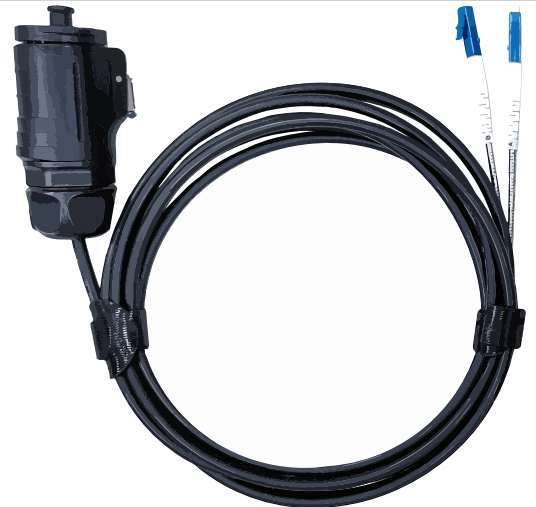
LC-to-LC Fiber Patch Cable: Single-Mode Duplex (with housing for external use) 3.1m / 10ft NOTE: Unit is delivered with connectors covered by protective caps. Remove protective caps before use.
1
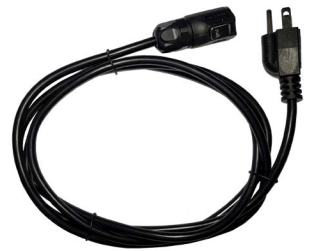
AC Power Cable (1.8m/6ft)
1
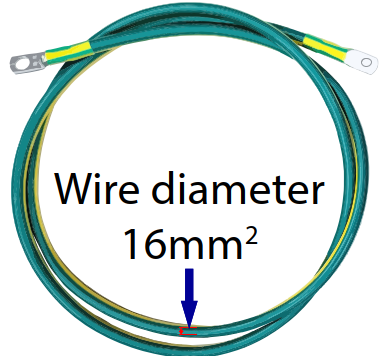
Chassis Ground Cable (1.5m(5ft)/ 16mm2 Diameter)
1
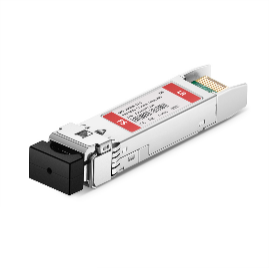
SFP+ Transceivers 1 pc. of SFP+ pre-installed in Remote Access Point 1 pc. of SFP+ packaged separately
2
#### Mounting Bracket Kit
Mounting Bracket Kit Package Contents
Parts
QTY
Image
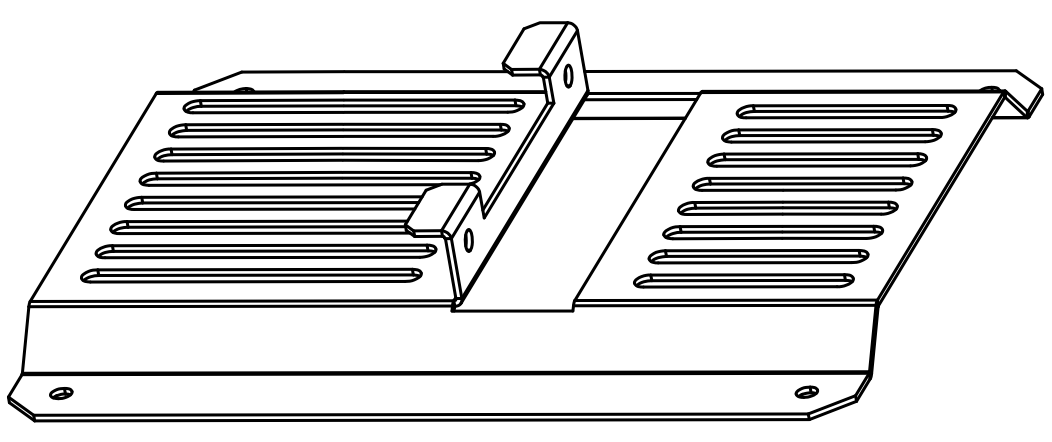
Access Point Mounting Plate
1
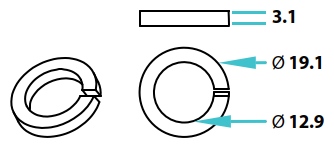
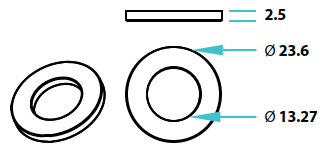
Socket Head Cap Screw (M8 x 20 mm Long), including M8 Split Washer and M8 Flat Washer
6
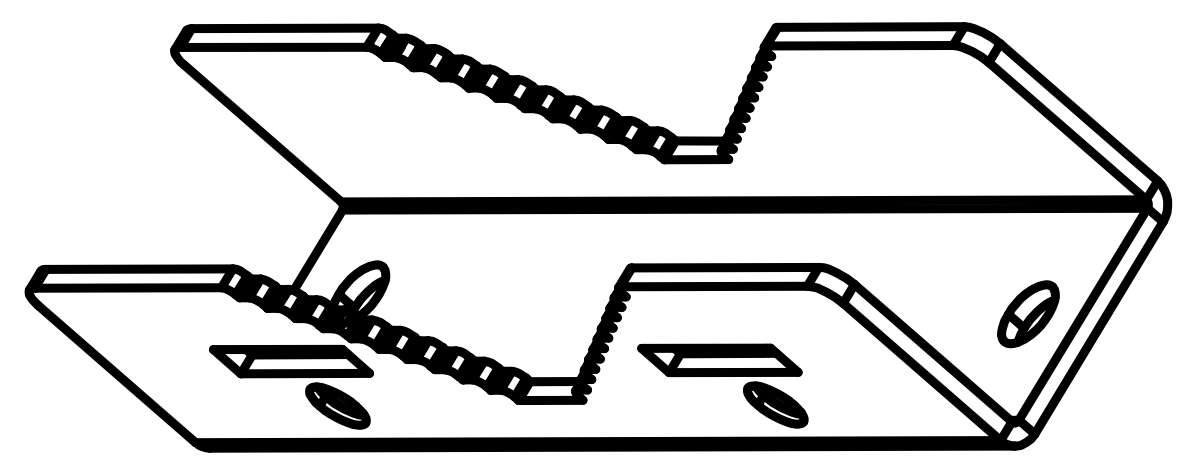
Pole Clamps
2
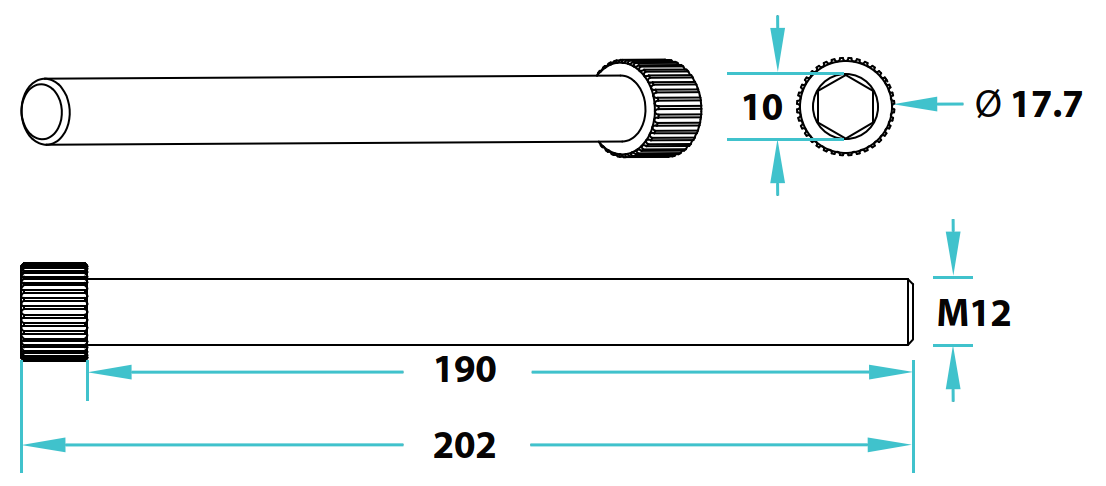
Hex Bolts (M12 x 190 mm Long)
2
Split Washer (M12)
2
Flat Washer (M12)
2
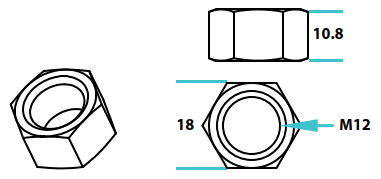
Hex Nut (M12)
2
## Installation Preparation
This document describes the installation process for pole and wall mounting of the GXC G505 5G outdoor AP, and the recommended location and environment required for optimal performance.
{% hint style="danger" %}
**WARNING:** This and all telecommunications equipment must be installed in locations that are not easily accessible to the general public and do not pose a hazard to nearby personnel or equipment. Installation must be performed only by a licensed and certified professional.
{% endhint %}
### Pre-Installation Notes
In the process of transportation, handling, and installation of the GXC G505 5G outdoor AP the customer or installer must adhere to the following usage requirements:
* Before the installation, it is required to transport the G505 AP to the installation site while still in its shipping packaging. Unpacking or transferring the unit in an unprotected manner could lead to damage of the external connectors or enclosure of the G505 AP. External damage like this will not be covered under the product warranty.
* Avoid collisions between the G505 AP and other components, parts, doors, walls, shelves, and other objects during transportation, handling, and installation processes.
* During transportation, handling, and installation, wear clean protective gloves. It is prohibited to touch parts with bare hands or with dirty gloves. Contamination of the G505 AP’s connectors can lead to deficient performance or product failure.
* Before installing the G505 AP, the installer must be familiar with its exterior, ports, indicators, installation scenarios and installation clearance requirements.
* Inspect and clean (as required) any ports for any debris prior to making any connections using industry approved methods and materials.
CAUTION: Energizing this AP without properly terminating the RF ports with a 50 ohm antenna or equivalent attenuator loads may result in damage to the AP.
### Installation Procedure
Before installing the radio unit, understand the required safety standards, power requirements, necessary tools, parts, and components available or needed.

### Hardware Information
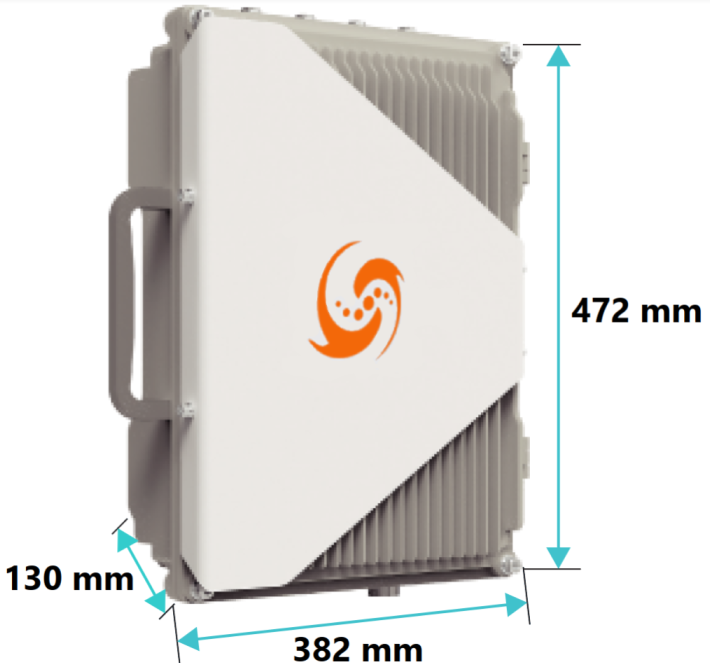
G505 AP Overall Dimensions (mm)
#### Top Surface Ports
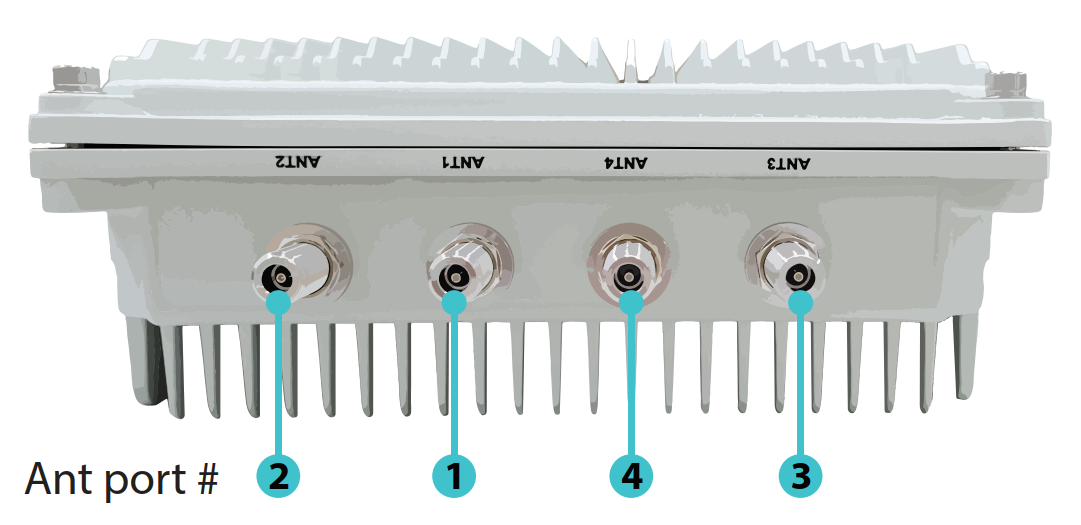
As seen below, on the top surface of the G505 AP, there are four antenna ports. These ports are marked ANT1, ANT2, ANT3 and ANT4 and correspond to Antenna Port 1, Antenna Port 2, Antenna Port 3, and Antenna Port 4, respectively.
All antenna ports provided on the G505 AP are Type-N Jacks.
Ensure that all covers or caps remain on these Type-N Jacks until interconnection or termination is necessary. In addition, if an interconnection or termination is removed from the connector, the installer or technician must apply the original or common Type-N weatherproof caps to protect the internal surfaces of the connector.
G505 Top Port View
G505 Port Descriptions
Item #
Item
Description
2
Antenna Port #2
Radio frequency N-type SMA connectors for the provided RF cables to connect to the external antenna.
1
Antenna Port #1
Radio frequency N-type SMA connectors for the provided RF cables to connect to the external antenna.
4
Antenna Port #4
Radio frequency N-type SMA connectors for the provided RF cables to connect to the external antenna.
3
Antenna Port #3
Radio frequency N-type SMA connectors for the provided RF cables to connect to the external antenna.
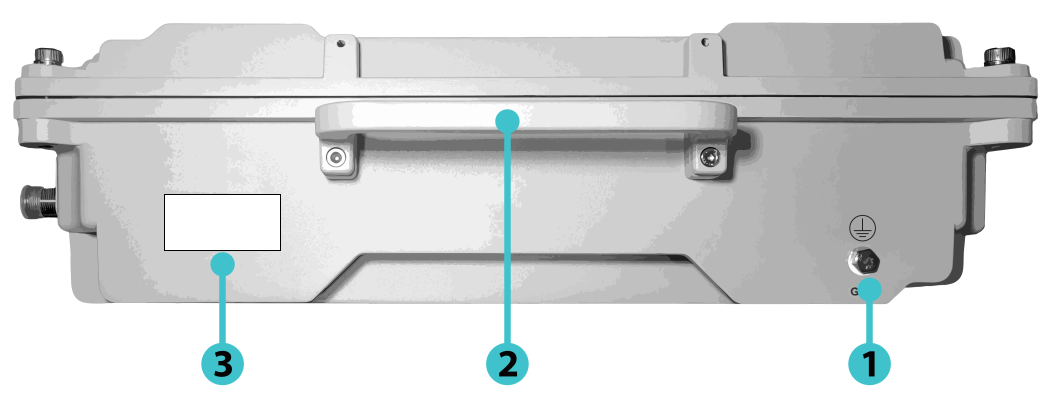
#### Left Side Details
G505 Left Side View
G505 Left Side Item Descriptions
Item #
Item
Description
1
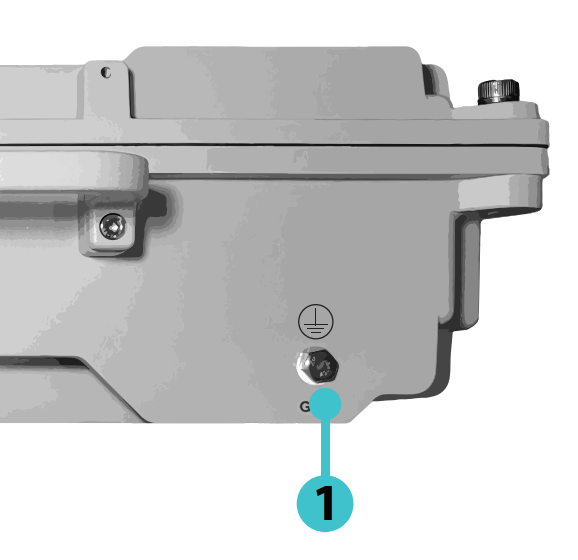
Grounding Screw
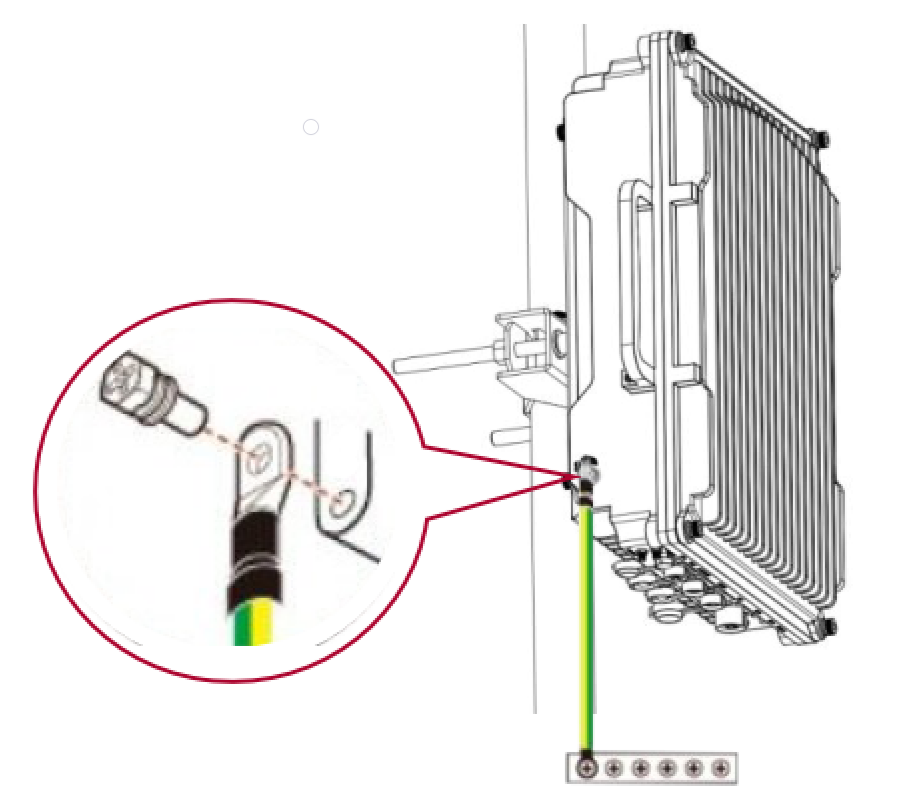
For electrical surge protection. Connect the provided grounding cable (green & yellow) to this screw and the other end to a verified building earth ground.
2
Carrying Handle
Use this for transporting the AP by hand.
3
Product ID Label
Product information and serial number.
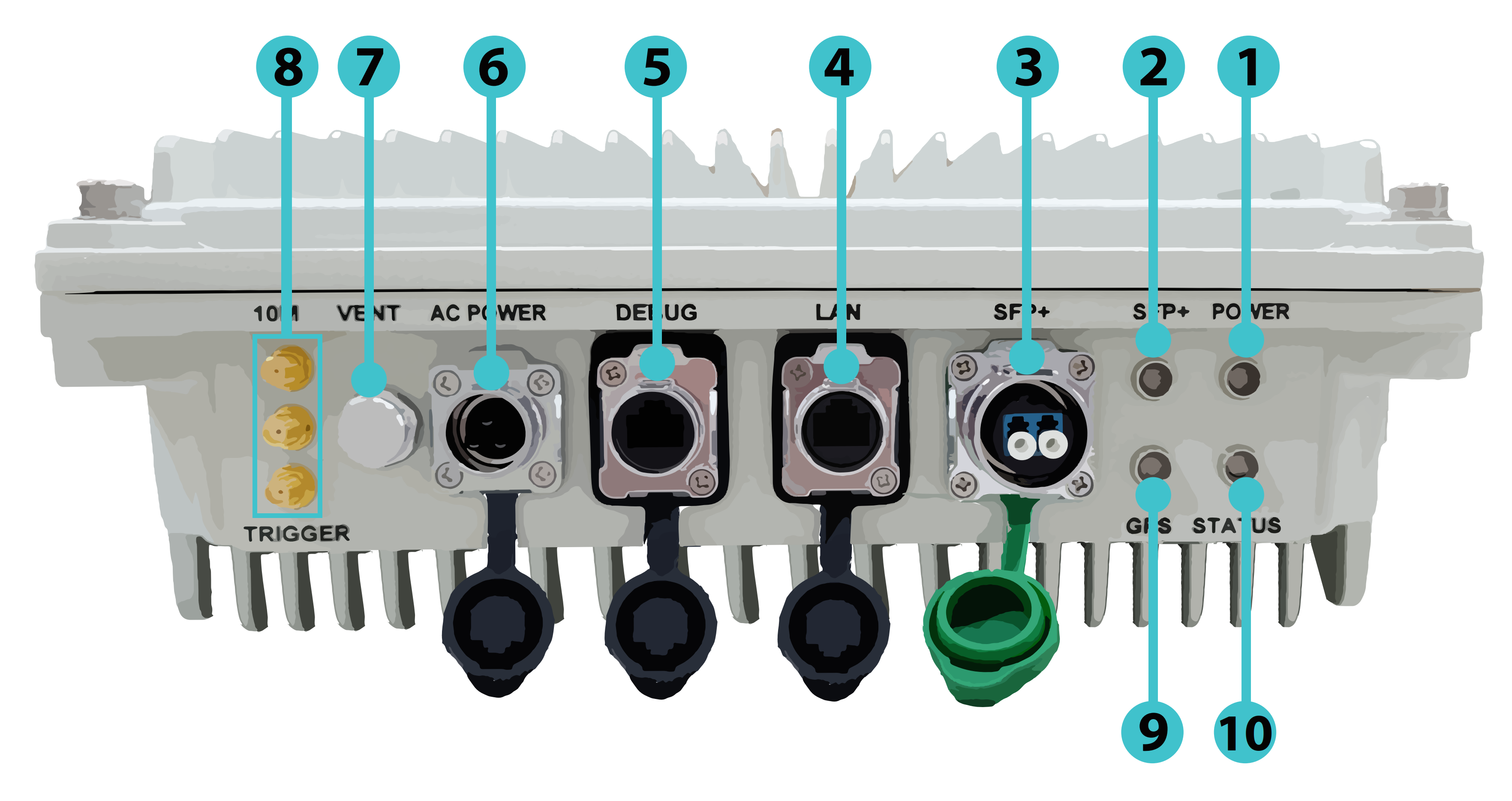
#### Bottom Surface Ports
On the bottom surface of the G505 AP there are several connectors and LEDs. In this Installation Guide we will highlight the major connectors and LEDs and define their function. For further details regarding these connectors, their usage and troubleshooting, please refer to the G505 User Guide.
Ensure that all covers remain on these connectors until interconnection or termination is necessary. In addition, if an interconnection or termination is removed from the connector, the installer or technician must apply the integrated or common weatherproof cap to protect the internal surfaces of the connector. The major connectors on the bottom surface include the following:
* SFP+ – The “SFP+” Port is used for optical interconnection to/from the Fronthaul C/U/S/M-Planes. Refer to the following section for more information regarding the Optical Transceiver Module.
* LAN – The “LAN” port is used to access the G505 AP’s Web GUI and SSH. This port is unused in standard operation. The G505 management plane runs over the SFP+ interface.
* AC Power – The “AC Power” port provides the connection to energize the G505 AP. The unit supports Universal AC Voltages of 100 to 240V AC, with frequencies of 50 or 60Hz.
#### Optical Transceiver Information
**Bottom Surface LEDs**
There are 4 LEDs present on the bottom surface of the G505 AP. These LEDs provide the local user with an indication of the unit’s status and can also be used in troubleshooting. Presented in this guide is a summary of LED behaviors. For further details, please refer to the G505 User Guide.
* “Power” LED – Indicates the power status of the G505 AP:
* Solid Green: Power On
* Off: Power Off
* “Status” LED – Indicates basic G505 AP status. It is used to indicate boot and alarm condition of the unit.
* Solid Green: Normal Operating State
* Blinking Green: AP is actively transmitting or receiving config or status data
* Solid Amber: System Startup (Initializing)
* Solid Red: AP has not yet received any timing (PTP) packets, has an active system alarm, or is waiting for config or status data
* “SFP+” LED – Indicates the status of the fiber connection and optical data transmission of the G505 AP.
* Solid Green: Normal Fiber Connection
* Blinking Green: Normal / Active Fiber Data Transmission
* “GPS” LED – Refer to the G505 AP User Guide for further details regarding the “GPS” LED.
Bottom Port View of the G505 AP
G505 Bottom Port Item Description
Item #
Item
Description
1
LED Indicator - Power
Illuminates green when power is applied.
2
LED Indicator - SFP+
Lights green when fiber optical cable is connected. Blinks green during active data transmission.
3
SFP+ (1310nm single mode transceiver module, 2x LC ports) (Not user replaceable)
eCPRI data transmission via fiber cable for fronthaul C/U/S/M planes. Connect with fiber optics cable to the transceiver of the DU (in C1) or PTP fronthaul (FH) switch (in C2/C3).
4
LAN (RJ45) for management
1Gbps IEEE, 802.3bt PoE, telnet/SSH. This port is used for accessing this radio unit’s web GUI and SSH. LAN port default IP address is: 192.168.100.10.
5
Debugging Port
(Reserved)
6
AC Power Port
This radio unit supports AC 100 to 240V 50/60Hz. Plug in the provided AC cord to an AC power outlet.
7
Venting Port
Automatically relieves pressure when needed. No user interaction required.
8
SMA Connectors
(Reserved)
9
LED Indicator - GPS
Green – AP is PTP locked (normal) Red – AP is not PTP locked (error or still waiting)
10
LED Indicator - Status
Amber – Initializing Green - AP received PTP packets (normal) Red - AP has not yet received any PTP packets (error or still waiting)
### General Antenna Information
When connecting a 4x4 MIMO outdoor AP to a 4x4 slant- or cross-polarized antenna, installers should follow industry best practices and safety protocols to ensure signal integrity, performance, and proper polarization orientation.
#### Special Port Mapping
The following table is provided for special cases where a Front Haul Multiplexer (FHM) or a Multi-Port Connect configuration is used.
Special Port Mapping
AP Port Number
1
2
3
4
Antenna polarization (4x4 standard)
H or +45
H or +45
V or -45
V or -45
Antenna polarization (4x4 FHM co-located AP)
V or -45
V or -45
H or +45
H or +45
Multi-Port Connect :
Antenna#1 2x2 dual
H or +45
V or -45
Antenna#2 2x2 dual
H or +45
V or -45
{% hint style="info" %}
{% endhint %}
#### Antenna Polarization and MIMO Fundamentals
**Slant/Cross-Polarized Configuration:** 4x4 MIMO systems typically use dual-slant polarization (+45° and -45°) or vertical/horizontal cross-polarization to maximize spatial diversity and minimize correlation between antenna elements. This configuration allows the system to transmit and receive independent data streams simultaneously with better performance.
**Polarization Matching:** Given two communicating APs their antenna systems should match in polarization configuration for optimum performance. Most 4x4 outdoor slant antennas alternate polarization across ports (e.g., Port 1: +45°, Port 2: -45°, Port 3: +45°, Port 4: -45°). The following table provides a short summary of differences between slant- (±45) and cross- (H/V) polarization.
Summary of Differences between Slant and Cross Polarization
| Aspect | Slant-Polarization (±45) | Cross-Polarization (H/V) |
| ------------------ | ------------------------ | ---------------------------------- |
| Angle | +45° and -45° | 0° (Horizontal) and 90° (Vertical) |
| Use Case | Common in LTE/5G | Common in Wi-Fi, some LTE |
| Port Configuration | Alternating slants | Alternating H/V or H-H/V-V |
| Physical Mounting | Less sensitive to tilt | More sensitive to rotation |
#### Physical Port Connections
**Port Mapping**
There is no universal industry-wide convention that dictates which port is labeled H, V, +45°, or –45° in multi‑port (cross‑ or slant‑polarized) MIMO antennas—different manufacturers may label ports according to their own designs and datasheets. Example Port Mapping: A 4x4 MIMO antenna system may follow this convention:
* Ports 1 & 3: +45° slant polarization (or vertical)
* Ports 2 & 4: -45° slant polarization (or horizontal)
{% hint style="warning" %}
**CAUTION:** Always verify the port polarization and orientation of the antenna system you are deploying. Failure to do may result in poor system performance.
{% endhint %}
{% hint style="warning" %}
**CAUTION:** AP ports are not always labeled consecutively as 0-1-2-3 or 1-2-3-4. Always review the AP documentation and actual labeling on the AP to ensure that you are connecting the intended ports between the AP and antenna.
{% endhint %}
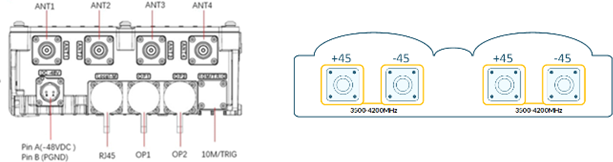
In the case of an example AP and example antenna shown below, the cabling port connections are shown in the table below.
Generic AP Port to Antenna Port Mapping
| AP port | Antenna Port (left to right) | Antenna Polarization |
| ------- | ---------------------------- | -------------------- |
| ANT1 | First port | +45° |
| ANT2 | Second port | -45° |
| ANT3 | Third port | +45° |
| ANT4 | Fourth port | -45° |
A figure of an AP and antenna ports are provided below for the reader’s reference.
Example AP and Antenna Port View
**Connector Types:** Verify the connector types for outdoor installations prior to installation, ensuring proper impedance and weather proofing in accordance with local requirements and best practices.
{% hint style="warning" %}
**CAUTION:** Failure to use the correct connector types on both ends of the RF jumper cable will result in damage to the AP, antenna, and RF jumper.
{% endhint %}
**Cable Requirements:** Use low-loss coaxial cables (LMR-240 or equivalent) with matched electrical length between all four RF paths. Cable length differences should not exceed ±2cm to maintain phase coherence.
#### Installation Rules and Best Practices
**Labeling:**
* Label all cables with weather-proof labels.
* Place labels such that they will not be covered by final weatherproof boots or tape.
**Physical Separation:** Maintain minimum 0.5λ (wavelength) spacing between antenna elements at the operating frequency.
**Grounding and Safety:**
* Install proper RF grounding at both the antenna and AP
* Use surge protection on all RF lines
* Follow local electrical codes and tower safety regulations
* Ensure all connections are weatherproofed to IP67 or better
**Orientation and Alignment:**
* Mount antennas with proper mechanical tilt (typically 0-15° down tilt)
* Ensure cross-polarized elements maintain orthogonal relationship
* Use precision inclinometers for accurate mechanical alignment
**RF Path Management:**
* Keep all four RF cables equal length (±1% tolerance)
* Avoid sharp bends (minimum bend radius = 10x cable diameter)
* Route cables to minimize mutual coupling and external interference
* Label cables clearly (Port 1-4, +45°/-45°) for maintenance
**Testing and Verification:** After installation (if applicable), verify:
* VSWR of RF cabling between AP and antenna
* Port-to-port isolation
* Proper polarization alignment using field strength measurements
* Successful MIMO stream establishment through system diagnostics
**Regulatory Compliance:**
* Ensure antenna gain and EIRP levels comply with local regulations
* Document installation with photos and measurement reports for warranty, compliance records.
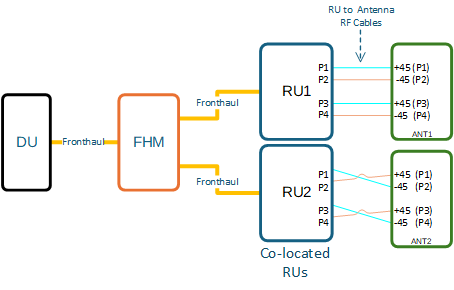
### Co-located Dual 4x4 MIMO APs w/FHM
The figure below, describes a special case of two co-located 5G APs mounted next to each other (within 10m of one another) fed from an FHM. This polarization-swapped dual AP setup is chosen to enhance signal diversity, reduce co-located interference, and improve MIMO performance in a shared coverage zone. It introduces controlled polarization diversity at the network level, which benefits:
* UE connectivity stability
* Signal quality across orientations
* Interference management
* Throughput in edge and overlapping regions
Co-located Dual 4x4 MIMO APs
The following table tabulates the information from the previous figure.
Typical Antenna Connection Mapping
Antenna Port (left to right)
AP 1 Connections
Antenna Polarization
AP 2 Connections
Antenna Polarization
+45
TX/RX P1
+45° (P1)
TX/RX P1
-45° (P2)
-45
TX/RX P2
-45° (P2)
TX/RX P2
+45° (P1)
+45
TX/RX P3
+45° (P3)
TX/RX P3
-45° (P4)
-45
TX/RX P4
-45° (P4)
TX/RX P4
+45° (P3)
A typical antenna port configuration are shown in the figure below (labeled P1-P4 for reference).
Typical 4x4 MIMI Slant-Polarization Antenna
## G505 AP Installation
### Instructions and Limitations
The G505 AP can be installed on poles and walls, with details as follows. Other installation locations and structures are feasible. However, if alternate structures are utilized, it is the installer or customer’s responsibility to assess and deem these locations as acceptable and to utilize industry standard construction methods to verify the unit’s stability and orientation corresponds with these specifications.
#### Installation Overview
The installation specifications described in this document only define the adaptability of the specific installation components and scenarios pictured and described.
{% hint style="warning" %}
**CAUTION:** Prior to installation, assess the strength and reliability of the structure proposed for the unit installation based on the actual weight of the installed equipment.
{% endhint %}
### Application Limitations
To ensure proper air circulation and effective heat dissipation around the G505 AP, limitations on the unit application environment include, but are not limited to, the following points:
* Do not install the G505 AP in indoor or outdoor cabinets that are completely sealed and lack either air exchange or active cooling systems such as heat exchangers, air conditioners, etc., which will ensure the ambient temperature will not exceed the specified temperature range.
* Do not install the G505 AP in equipment rooms or network closets that are completely sealed and do not have active cooling systems as detailed above.
{% hint style="warning" %}
**CAUTION:** Inappropriate application environments can reduce heat dissipation capability of the G505 AP, which may cause the unit to malfunction or fail.
{% endhint %}
### Installation Clearance Requirements
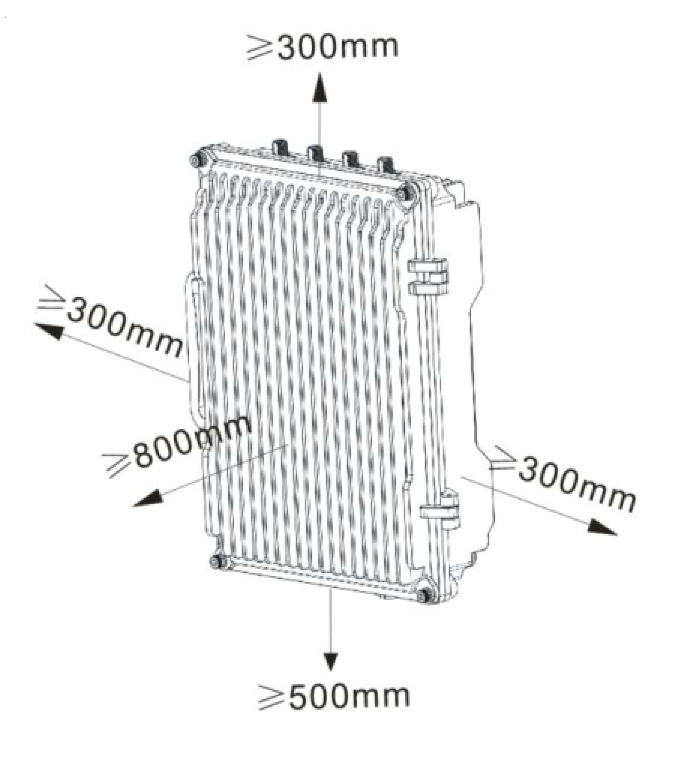
The minimum clearance recommended for the G505 AP installation is shown below, in Figure 9. Ensure that the ambient air temperature remains in the specified operational temperature range and these clearance dimensions are maintained to ensure normal operation and allow ample room for maintenance.
Minimum Clearance Dimension Requirements
For ground-based installations, maintain a minimum clearance of 500 mm from the bottom of the unit to the ground. Additionally, if placed directly above a thermally reflective surface such as asphalt or common roofing materials, the minimum clearance between the bottom of the unit and this material should be increased to a minimum of 1000mm.
{% hint style="warning" %}
**CAUTION:** To ensure proper air circulation and effective heat dissipation around the access point, do not install it in indoor or outdoor cabinets (such as enclosed camouflage boxes) or in closed rooms without active cooling systems. Such conditions can lead to overheating and may cause the access point to malfunction.
{% endhint %}
#### Transportation, Handling, and Installation
Before installation, transport the access point to the site in its packaging. Avoid collisions during transport, handling, and installation. Wear clean gloves and avoid touching connectors or ports with bare hands or dirty gloves.
#### Common Installation Process
1. Pre-Installation Checklist:
1. Ensure you understand the required safety standards, power requirements, and necessary tools.
2. Verify that all necessary parts and components are available or identified for procurement.
2. Site Preparation:
1. Survey the installation site, including support structures.
2. Collect all required parts and tools.
3. Implement necessary safety measures at the site.
3. Mounting the Access Point:
1. Use the mounting kit to securely attach the access point to a pole, bar, or a stable support frame.
4. Grounding:
1. Connect the grounding cable from the access point to an appropriate earth conductor.
5. Antenna Connection:
1. Attach the antenna cables from the access point to a certified external antenna.
2. Ensure waterproofing of the antenna cable connectors on both the access point and the external antenna. The steps are shown at the end of this section.
6. Fiber and Ethernet Connections:
1. Install the provided fiber cable into the SFP+ port and connect it to a fiber termination box.
2. Use your own ethernet cable to connect the RJ45 LAN port to an ethernet switch.
7. Power Supply:
1. Connect the provided power cable to an appropriate power source, depending on the access point model.
2. The power light will automatically turn on once powered.
{% hint style="danger" %}
**WARNING:** This device must be grounded using a green and yellow striped copper wire with a single core of at least 6 AWG.
{% endhint %}
### Access Point Installation – Pole
#### Installation Materials and Tools
**Verification of Mounting Kit Materials**
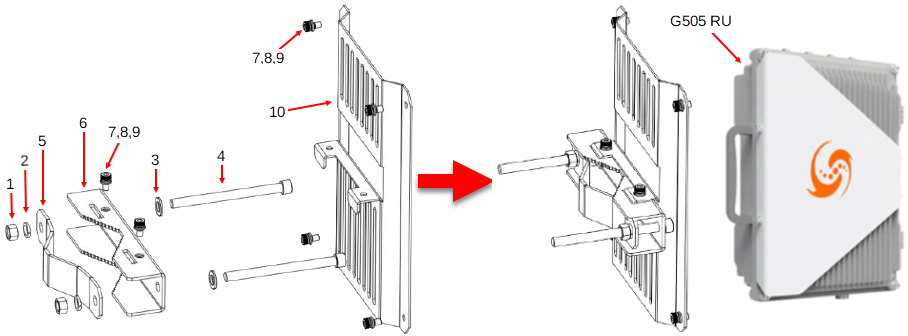
Check the G505 Mounting Kit package to ensure it contains the components required for pole mounting as shown below.
Components Required for Pole Mounting
Components Required for Pole Mounting
Item #
Description
Pole Mounting Quantity
1
M12 Hex Nuts (18 mm Wrench Size)
2 pcs.
2
M12 Spring Washers
2 pcs.
3
M12 Flat Washers
2 pcs.
4
M12 x 190 mm Long Socket Head Cap Screws
2 pcs.
5
Outside Pole Bracket
1 pc.
6
Inside Pole Bracket
1 pc.
7
M8 x 20 mm Long Socket Head Cap Screw Assembly (with 8, 9)
6 pcs.
8
M8 Spring Washers
6 pcs.
9
M8 Flat Washers
6 pcs.
10
Main Mounting Bracket
1 pc.
In addition to industry-standard tools, you may need the customer provided materials and tools listed in the following tables.
Additional Installation Material
| Parameter | Value |
| ---------------------------------- | ---------------------------------------------- |
| Item | Description |
| Type-N RF antenna cables (up to 4) | 50-ohm feeder |
| RF antenna | Omni or directional |
| All-weather electrical tape | Used for weather proofing |
| All-weather mastic tape | Used for weather proofing |
| Tie wraps | Used for weather proofing and cable management |
Installation Tools
| |  |  |  |
| --------------------------------------------------------------------------------------------------------------------------------------------------------------------------------------------------------------------------------------------------------- | --------------------------------------------------------------------------------------------------------------------- | --------------------------------------------------------------------------------------------------------------------- | --------------------------------------------------------------------------------------------------------------------- |
| Adjustable Wrench | 18 mm Wrench | Torque Wrench: (Adjustable or 18mm) | Adjustable Torque Wrench |
| |  |  |  |
| 6 mm Hex Socket Bit | Level Bar | Marker | Clean Work Gloves |
#### Pole Mount Installation Procedure
The Pole Mounting Kit of the G505 AP supports installation on poles, masts or other sturdy structural infrastructure that has a circumscribed circular diameter in the range of 50 to 178 mm (2 to 7 inches).
{% hint style="danger" %}
**WARNING:** Prior to installation, perform a thorough evaluation of the specific installation location and mounting feature. Do not install the G505 AP onto features or surfaces that are structurally sound and can support the weight of the G505 AP and associated additional equipment; approx. 57 kg (125 lbs.)
{% endhint %}
{% stepper %}
{% step %}
Place Main Mounting Bracket over rear surface of the G505 AP ensuring that the direction of the Hook Feature of the Main Mounting Bracket faces downward (away from the Type-N RF Connectors) and align the 4 M8 threaded holes on the rear surface of the AP with the corresponding thru holes in the Main Mounting Bracket.
Install 4 pcs. of M8 Split Lock Washers onto 4 pcs. of M8 x 20 mm Long Socket Head Cap Screws.
Install 4 pcs. of M8 Flat Washers onto the same 4 pcs. of M8 x 20 mm Long Socket Head Cap Screws.
Insert the 4 pcs. of M8 x 20 mm Long Socket Head Cap Screws with M8 Split Lock Washers and M8 Split Lock Washers through the 4 clearance holes in the Main Mounting Bracket and thread into corresponding holes in the rear surface of the G505 AP and hand-tighten.
Inserting Main Mounting Plate to G505
{% endstep %}
{% step %}
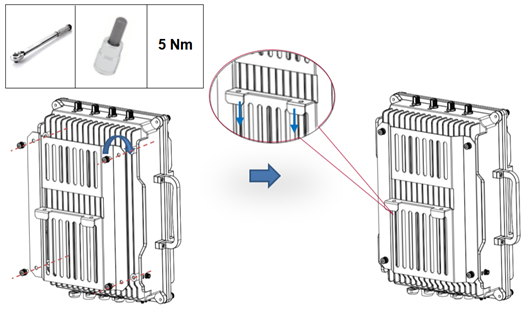
Using a 6 mm Hex Socket Bit and Torque Socket Wrench, tighten all 4 pcs. of the M8 x 20 mm Long SEMS Cap Screws to 5 Nm (3.6 ft-lbs.).
Attachment of the Main Mounting Bracket to the G505 AP
{% endstep %}
{% step %}
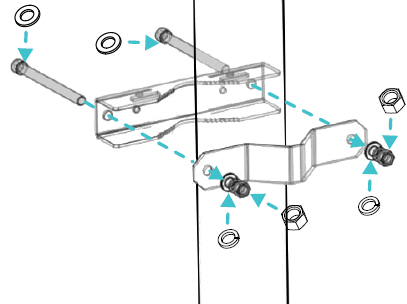
Place 2 pcs. of M12 Flat Washers onto 2 pcs of M12 x 190 mm Long Socket Head Cap Screws.
Insert the threaded shank of the assembled screws and washers through the clearance holes of the Inside Pole Bracket.
Place the assembled Pole Bracket around the pole at the height that the unit is to be mounted and hold it in place.
While supporting the assembled inside bracket, install the second piece of the outside pole bracket over the M12 x 190 mm Long Socket Head Cap Screws such that the V-shaped sections of the Inside and outside pole backets clamp the pole.
Place 2 pcs. of the M12 Spring Washers over the ends of the M12 x 190 mm Long Socket Head Cap Screws and against the outside pole bracket.
Install 2 pcs. of the M12 Hex Nuts onto the M12 x 190 mm Long Socket Head Cap Screws and hand-tighten the nuts to the M12 Spring Washers and outside pole bracket.
Pole Mount Bracket Installation
{% endstep %}
{% step %}
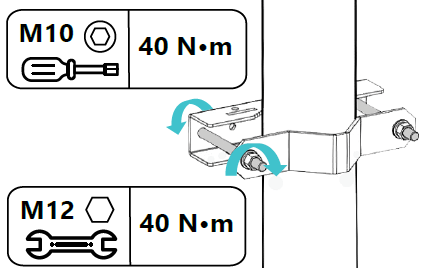
Tighten 2 pcs of M12 Hex Nuts to 40 Nm (29.5 ft-lbs.) using a M12 Wrench or an Adjustable Torque Wrench to tighten the M12 Hex Nuts and a M10 Hex Socket Bit and Torque Socket Wrench to prevent the M12 Socket Head Cap Screws from rotating while tightening the M12 Nuts.
Pole Bracket Torque Values
{% endstep %}
{% step %}
Install the Hook Feature of the Main Mounting Bracket of the G505 AP onto the Pole Bracket, inserting the tabs of the Hook Feature into the slots of the Pole Bracket.
Install 2 pcs. of M8 Split Lock Washers onto 2 pcs. of M8 x 20 mm Long Socket Head Cap Screws.
Install 2 pcs. of M8 Flat Washers onto the same 2 pcs. of M8 x 20 mm Long Socket Head Cap Screws.
Insert the 2 pcs. of M8 x 20 mm Long Socket Head Cap Screws with M8 Split Lock Washers and M8 Split Lock Washers through the 2 clearance holes through the clearance holes of the Main Mounting Bracket, thread and hand-tighten into threaded holes of the Pole Bracket.
Mounting Main Mounting Bracket onto Inside Pole Bracket
{% endstep %}
{% step %}
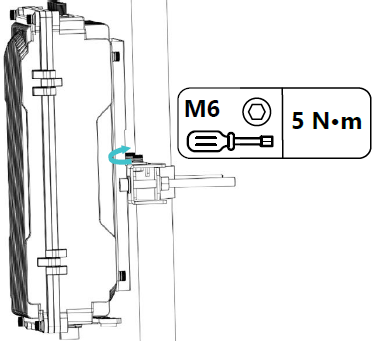
Tighten the M8 x 20 SEMS Socket Head Cap Screws to 5 Nm (3.6 ft-lbs.) using an M6 Hex Socket Bit and Torque Socket Wrench.
Torque AP Retaining Screws
{% endstep %}
{% endstepper %}
### Access Point Installation - Wall
The G505 Access Point can easily be wall mounted using the materials in the Mounting Kit. The following instructions are meant to assist the installer in the installation of the G505 onto common wall constructions.
{% hint style="danger" %}
**WARNING:** Prior to installation onto walls, verify that wall construction is such that it can support the weight of the G505 AP and associated additional equipment; approx. 57 kg (125 lbs.)
{% endhint %}
#### Installation Materials and Tools
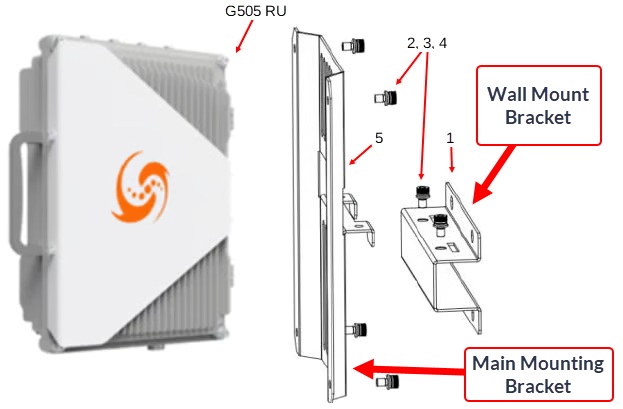
Check the G505 Mounting Kit package to ensure it contains the components required for wall mounting as shown in the following figure.
Included Components Required for Wall Mounting
Table of Included Components Required for Wall Mounting
Item No.
Description
Wall Mounting Quantity
1
Wall Mount Bracket
1 pc.
2
M8 x 20 mm Long Socket Head Cap Screws
6 pcs.
3
M8 Spring Washers
6 pcs.
4
M8 Flat Washers
6 pcs.
5
Main Mounting Bracket
1 pc.
In addition to industry-standard tools, installation onto a wall may require the customer provided materials and tools listed in the following tables.
Table of Additional Installation Material (Customer Supplied)
| Item | Descriptioin |
| --------------------------------------------------------------- | ---------------------------------------------------------------------------------------------------------------------------------------- |
| Type-N RF antenna cables (up to 4) | 50-ohm feeder |
| RF antenna | Omni or directional |
| Length of 2 x 6 inch Nominal ACQ-Treated Lumber | Treated wood brace to span between framed structural members (Framed Wall Installation Only) |
| #10 ACQ-Rated Wood Screws (4 pcs.) | Corrosion-Resistant Preservative Rated Wood Screws for attaching the treated wood brace to the wall (Framed Wall Installation Only) |
| M12 (½ -inch) Hot Dipped Galvanized Washers (4 pcs.) | Corrosion-Resistant mounting hardware for G505 AP Wall Mounting Bracket (Framed Wall Installation Only). |
| M12 (½ -inch) Hot Dipped Galvanized Lag Screws (4 pcs.) | Corrosion-Resistant mounting hardware for G505 AP Wall Mounting Bracket (Framed Wall Installation Only). |
| M12 (½ -inch) Zinc Lag Shield (Threaded Metal Anchors) (4 pcs.) | Malleable Zinc 12 mm or ½-inch Lag Screw Anchor for Concrete to be matched with the chosen Lag Screws (Concrete Wall Installation Only). |
| M12 (½ -inch) Hot Dipped Galvanized Lag Screws (4 pcs.) | Corrosion-Resistant Lag Screws for G505 AP Concrete Wall Mounting Bracket (Concrete Wall Installation Only). |
Table of Installation Tools
| |  |  |  |
| --------------------------------------------------------------------------------------------------------------------------------------------------------------------------------------------------------------------------------------------------------- | --------------------------------------------------------------------------------------------------------------------------------------------------------------------------------------------------------------------------------------------------------- | ------------------------------------------------------------------------------------------------------------------------------------------------------------------------------------------------------------------- | --------------------------------------------------------------------------------------------------------------------- |
| Adjustable Wrench | 12 mm and ¾-Inch Combo Wrenches | Torque Wrench: (Open Mouth: 12mm) | Adjustable Torque Wrench |
| | |  |  |
| 3/8 Inch Drive, 6 mm Hex Socket Bit | 3/8 Inch Drive, 10 mm Hex Socket Bit | 3/8 Inch Drive, #3 Phillips Socket Bit | Percussion Drill or Drill Driver |
|  |  |  |  |
|
14 mm Impact Drill Bit (for concrete) 3/8-Inch HSS or Carbide Bit (for wood)
| Level Bar | Marker | Rubber / Hard Plastic Hammer or Mallet |
#### Concrete Wall Installation Procedure
{% stepper %}
{% step %}
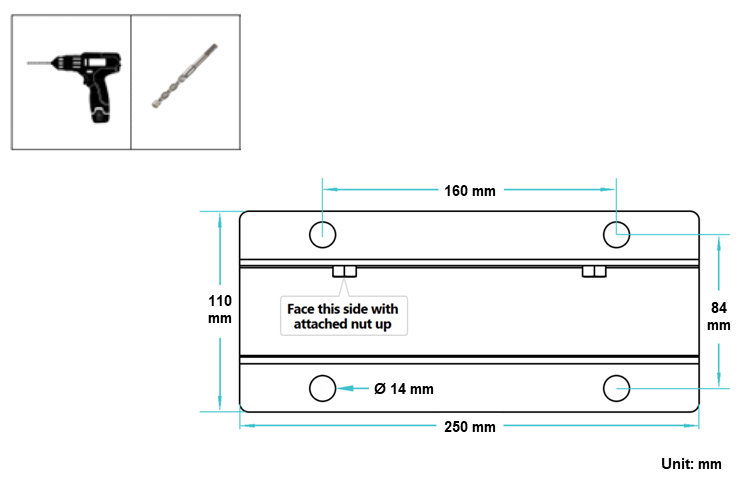
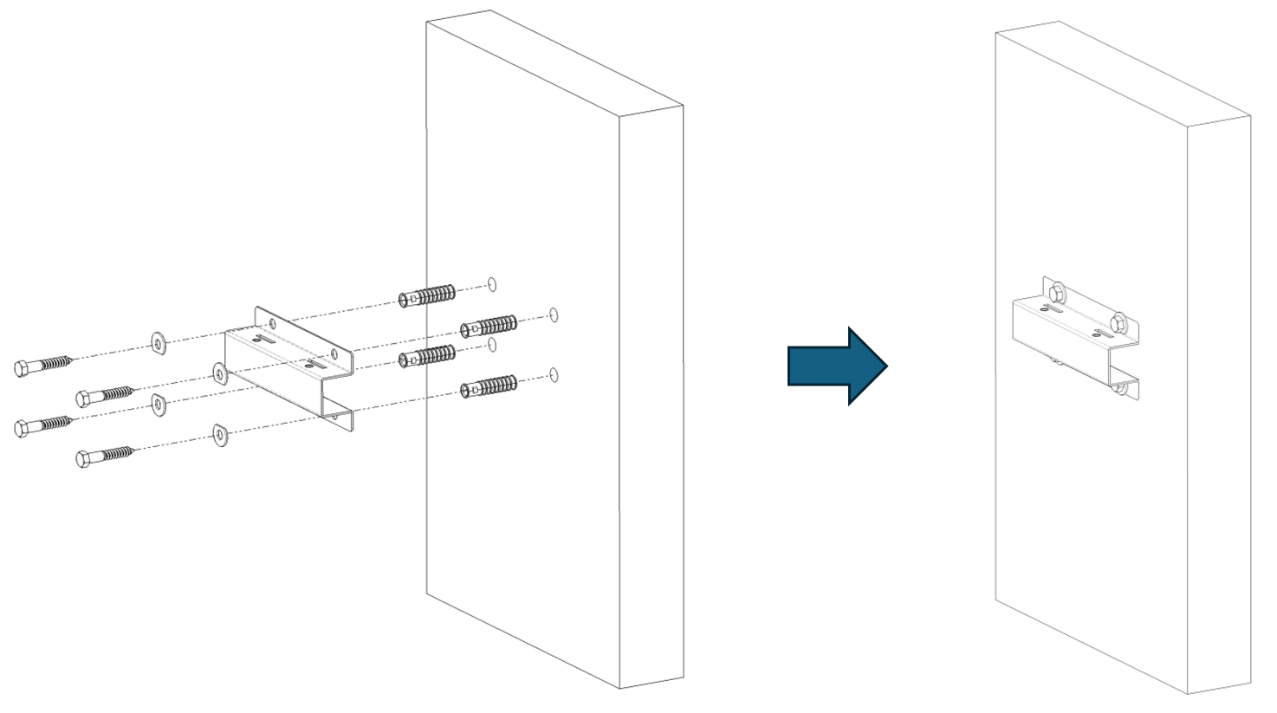
Place the wall bracket against the wall, use a level to verify that the wall bracket is placed horizontally, and mark the 14 mm anchor points.
Drill 4 holes with an appropriate diameter for 4 pcs. of an M12 or ½-inch Zinc Lag Shield using a concrete bit using a hammer drill to the appropriate depth for the Lag Shield.
Wall Mounting Bracket and Drilling Details
{% endstep %}
{% step %}
Insert 4 pcs of an M12 or ½-inch Zinc Lag Shield into the drilled holes by hand as deep as possible.
Using a hard rubber or plastic mallet lightly hammer the exposed Zinc Lag Shields until the shields are flush with the concrete surface.
{% hint style="info" %}
**NOTE:** If the Lag Shields do not insert from light tapping from hammer, take care not to bend or dent them. If the Lag Shield will not insert with light blows from the hammer, remove using Needle Nose Pliers, adjust the diameter of hole using drill, and reinsert Lag Shield.
{% endhint %}
Place 4 pcs of corrosion-resistant clipped flat washer over 4 pcs of M12 or ½-inch corrosion resistant lag screws (1 washer on each screw).
Holding G505 Wall Mounting Bracket against the concrete wall and aligning the 14 mm holes with the Lag Shields, insert and tighten the M12 or ½-inch Galvanized Lag Screws with clipped washer installed ensuring that the flat of the clipped washer is approximately parallel to the formed walls of the G505 Mounting Bracket. Use a 19 mm box wrench or adjustable wrench to torque these Lag Screws to approximately 22 Nm (16 ft-lbs.) DO NOT OVERTIGHTEN.
Installing G505 Wall Mount Bracket
{% endstep %}
{% step %}
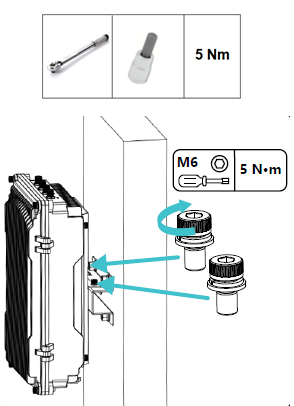
Install the Hook Feature of the Main Mounting Bracket of the G505 AP onto the Wall Mounting Bracket, inserting the tabs of the Hook Feature into the slots of the Wall Mounting Bracket.
Install 2 pcs. of M8 Split Lock Washers onto 2 pcs. of M8 x 20 mm Long Socket Head Cap Screws.
Install 2 pcs. of M8 Flat Washers onto the same 2 pcs. of M8 x 20 mm Long Socket Head Cap Screws.
Insert the 2 pcs. of M8 x 20 mm Long Socket Head Cap Screws with M8 Split Lock Washers and M8 Split Lock Washers through the 2 clearance holes through the clearance holes of the Main Mounting Bracket, thread and hand-tighten into threaded holes of the Pole Bracket.
Retaining Screws
{% endstep %}
{% step %}
Tighten the M8 x 20 SEMS Socket Head Cap Screws to 5 Nm (3.6 ft-lbs.) using a M6 Hex Socket Bit and Torque Socket Wrench.
Affixing G505 to G505 Wall Mount Bracket
{% endstep %}
{% endstepper %}
### Framed Wall Installation
When the G505 AP is to be installed onto a frame constructed wall (wood, steel, etc.), care must be taken to verify the wall and wall finish can safely support the weight of the unit. Wall finishes such as drywall, plaster/lathe, exterior siding, etc. can be brittle, and the mounting bracket requires additional support to ensure adequate strength to support the weight of the G505 AP and its mounting bracket.
{% stepper %}
{% step %}
To properly support the weight of the G505 AP and its mounting bracket on a finished or unfinished framed wall, determine approximate installation location on wall, laterally locate, measure and mark nearest framing studs or other internal structural member in or near the desired location.
Cut and install a length of preservative-treated 2-inch x 6-inch or wider nominal lumber (ACQ, MCA or CA pressure treated) as an installation brace such that it spans the structural studs of the wall and provides a minimum of an additional 2 inches of length per side (outside- to- outside span + 4 inches).
{% hint style="info" %}
**NOTE:** Preservative pressure treated wood brace is not included and must be provided by customer or installer.
{% endhint %}
While ensuring that the brace is level and perpendicular to internal wall structural framing (studs), fasten the installation brace to the framing stud using a minimum of 4 pcs. of #10 or larger-size corrosion resistant screws rated for the pressure treatment chemical of the brace. Length of the screws should be such that a minimum of 2 inches (50mm) of the screw penetrates the structural wall framing (stud).
{% hint style="info" %}
**NOTE:** Structural wood screws rated for preservative pressure treated wood brace are not included and must be provided by customer of installer.
{% endhint %}
Wood Brace Installation

{% endstep %}
{% step %}
Place the wall bracket against the installed wall brace, use a level to verify that the wall bracket is placed horizontally, and mark the 14 mm diameter anchor points.
Drill 4 – 3/8-inch (9.5mm) pilot holes at centers of marked 14 mm diameter anchor points marked on the brace in the previous step. Depth of pilot holes should be through the thickness of the brace, any wall finish, sheathing and at least 2 inches (50mm) into the wall structural framing (stud).
Install 4 pcs. of ½-inch (12mm) galvanized flat washers over ½-inch galvanized lag screws with length adequate to pass through the wall bracket, any wall finish and sheathing, and penetrate a minimum of 2 inches (50mm) into wall structural framing (stud).
{% hint style="info" %}
**NOTE:** Galvanized lag bolts and washers are not included and must be provided by the customer or installer.
{% endhint %}
Insert and tighten the assembled lag bolts through clearance holes of the G505 AP Wall Bracket, wall finish and sheathing, and into 3/8-inch (9.5mm) pilot holes. Tighten using a ¾ inch Wrench until snug and hardware is firmly flush with the surface of the G505 Wall Bracket.
{% hint style="info" %}
**NOTE:** Do not overtighten the Lag Bolts.
{% endhint %}
Installation of the Wall Bracket onto Framed Wall
{% endstep %}
{% step %}
Install the Hook Feature of the Main Mounting Bracket of the G505 AP onto the Wall Mounting Bracket, inserting the tabs of the Hook Feature into the slots of the Wall Mounting Bracket.
Install 2 pcs. of M8 Split Lock Washers onto 2 pcs. of M8 x 20 mm Long Socket Head Cap Screws.
Install 2 pcs. of M8 Flat Washers onto the same 2 pcs. of M8 x 20 mm Long Socket Head Cap Screws.
Insert the 2 pcs. of M8 x 20 mm Long Socket Head Cap Screws with M8 Split Lock Washers and M8 Split Lock Washers through the 2 clearance holes through the clearance holes of the Main Mounting Bracket, thread and hand-tighten into threaded holes of the Pole Bracket.
Tighten the M8 x 20 SEMS Socket Head Cap Screws to 5 Nm (3.6 ft-lbs.) using an M6 Hex Socket Bit and Torque Socket Wrench.
{% endstep %}
{% endstepper %}
## Grounding and Lightning Protection
The G505 AP Installation must have Class 1 Equipment Grounding. Prior to applying power to the G505 AP, the unit must be protected against lightning and other incidental electrical shocks by a protective earth ground. The following rules concerning Class 1 Equipment Grounding must be followed.
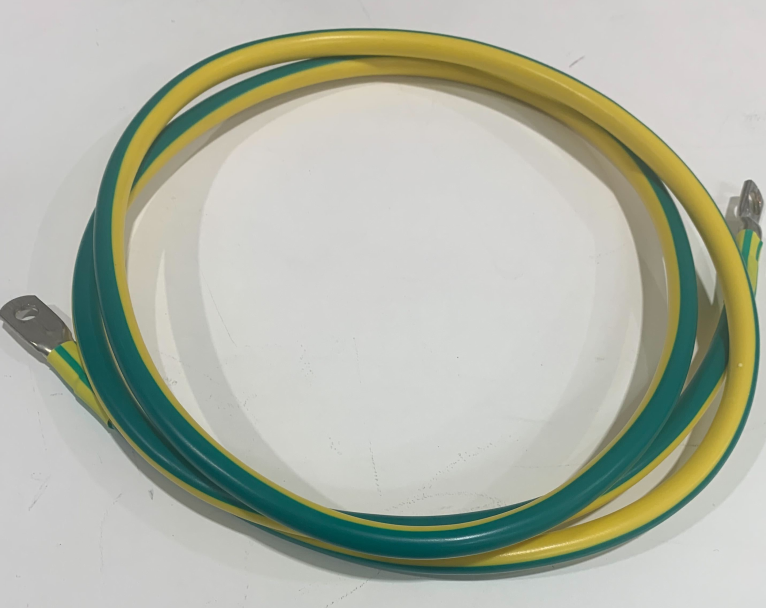
* Use the included pre-terminated 6 AWG yellow-green ground cable assembly, or any equivalent or larger gauge yellow-green cable assembly.
* Always terminate the ground cable to a known high quality ground connection, as near as possible to the equipment.
* Connect to a reliable outdoor grounding point (earth) using one ground screw.
* The connection of the grounding points and ground bar needs to be tight and reliable. Rustproofing the terminals, e.g., with antioxidant coating or grease, is required. To facilitate the chassis ground, a 6 foot long pre-terminated 5 AWG yellow-green ground cable assembly is provided with the G505 AP. In addition, a 10 mm Long M6 Hex Bolt is pre-fastened to the GND terminal on the G505 AP.
### Grounding Process
After the G505 AP is mechanically mounted, the following steps should be taken to properly provide a Class 1 Equipment Ground to the unit.
{% hint style="danger" %}
**WARNING:** Prior to termination of the Grounding Cable Assembly to the G505 AP, ensure that physical mounting of the unit is complete, stable, can support the weight of the additional cables, power is not applied to the unit, the grounding terminal block or other ground location has 0 Volts present, and that the earth ground connection is low resistance and impedance.
{% endhint %}
{% stepper %}
{% step %}
Using a 10 mm Wrench, loosen, remove, and retain the M6 x 10 mm Long Bolt from the GND location on the AP.
{% endstep %}
{% step %}
Insert M6 x 10 mm Long Bolt through one of the crimped Ring Terminals of the Pre-Assembled Ground Cable Assembly, and thread into the GND Location on the side of the G505 AP.
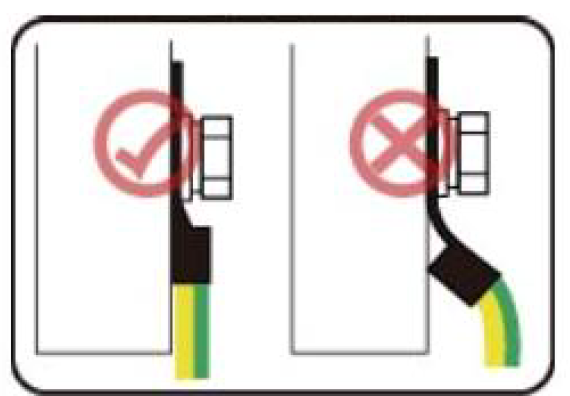
Ground Lug Orientation
{% endstep %}
{% step %}
Ensuring that the Ground Cable Assembly is routed downward or on the shortest path to the grounding terminal strip of the installation location, and that the orientation of the Grounding Ring Terminal is correct on the body of the G505 AP, tighten and torque the M6 x 10 mm Long Bolt using a 10 mm or Adjustable Torque Wrench to 5 Nm (3.6 ft-lbs.)
Installation Orientation of the G505 AP Grounding Ring Terminal

{% endstep %}
{% step %}
Layer Butyl Tape Over Mastic Tape:
* Cut a strip of butyl tape in a length adequate to complete 3 wrapping passes in a length of approximately 10cm (4 in) from the base of the connector and covering the mastic-covered area while slightly stretching the tape to ensure a tight fit.
* Overlap and smooth the layers as you wrap to prevent any air gaps and create an additional waterproof barrier.
Layer Butyl Tape Over Mastic Tape

{% endstep %}
{% step %}
Seal the Edges:
* Use your fingers to press the edges of the butyl tape against the surface of the 5G radio unit and cable to create a seamless seal.
* Ensure there are no exposed areas where moisture can seep in.
{% endstep %}
{% step %}
Inspection and Final Check:
* Visually inspect the seal for uniform coverage and check for any visible gaps or loose areas.
* Gently press on the tape to ensure full adhesion to the surface.
{% endstep %}
{% step %}
Curing Time:
* Allow the taped connection to sit for a few hours to ensure proper bonding and sealing.
{% endstep %}
{% endstepper %}
**Additional Tips**
* Perform this procedure in dry weather conditions for optimal results.
* Replace the tape if it shows signs of wear or degradation over time.
**Bottom Surface Ports**
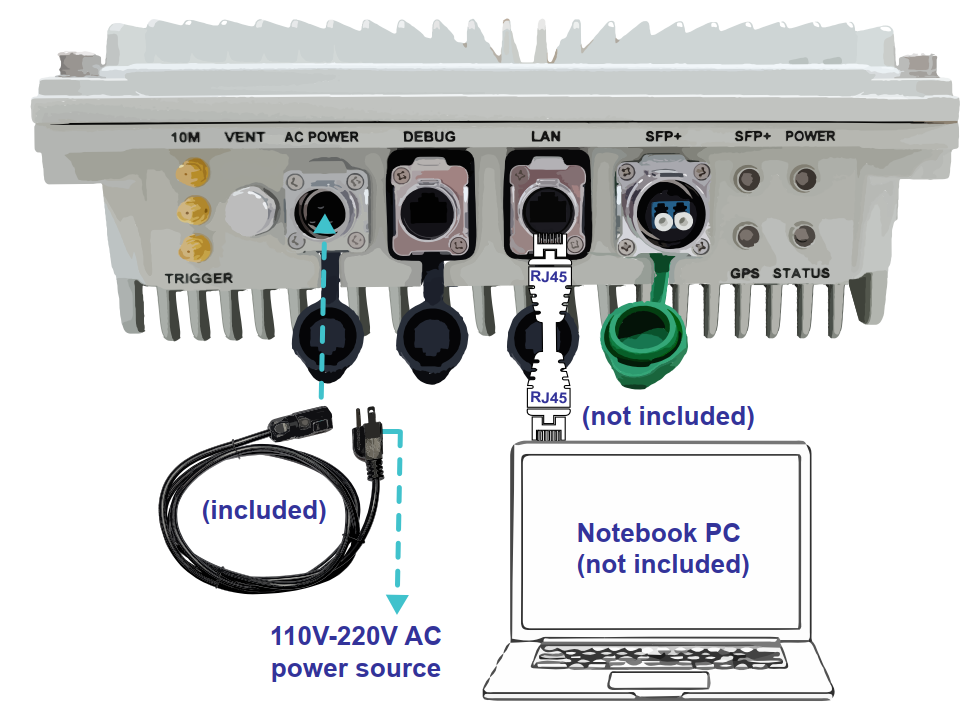
SFP+ Port Plug in the provided optical fiber cable assembly to the SPF+ port. The connector is a standard push-in connector. When fully seated you should hear an audible “click”. Pull on the connector to ensure that the latch feature is fully engaged. Connect the opposite end of the optical fiber cable assembly to an SFP+ 1310nm single mode transceiver of the Core/gNB server or FHM as shown in the figure. The fully engaged SFP+ Connector of the G505 AP is ingress rated to IP65, bottom mounted and does not require additional weatherproofing. LAN Port The LAN Port on the bottom of the G505 AP presents a RJ45 Jack. This RJ45 Jack can be used with a standard Ethernet Patch Cable to interconnect the G505 AP with a computer to login to the G505 AP’s embedded software via either a web browser or Secure Shell (SSH). The embedded software is utilized to access the AP Settings and perform firmware upgrades.
{% hint style="warning" %}
**CAUTION:** Local connection via the LAN Port and use of the embedded software should only be exercised by trained and qualified technicians or engineers.
{% endhint %}
Additional information regarding logging into the G505 AP, settings etc. is provided in the G505 User Guide. After the initial configuration of the G505 AP has been completed, configuration or maintenance of the unit can should be accomplished via the SFP+ Port and included Optical Cable via the M-Plane (Management Plane) of the AP. When not being actively used, the Lan port must have its attached weatherproof cover installed to protect the connector from water or debris pollution. Ensure this cover is always installed when the LAN Connection is not in use.
{% hint style="warning" %}
**CAUTION:** Failure to apply the integrated weatherproof cover of the LAN Port when not in use can result in water ingress into the AP, debris collecting on the integrated Ethernet Jack, corrosion and premature failure of the G505 AP. User must ensure that the integrated cover is installed on the LAN Port when not in use.
{% endhint %}
Local LAN Port Connection
AC Power Port Do not power up the unit until a proper Earth Ground is provided. For further details, please refer to the Grounding and Lightning Protection Section of this Installation Guide, or the G505 AP User Guide. A qualified electrician should be employed to install a dedicated 15 Ampere Branch Circuit terminating in a UL Rated Outdoor (Weatherproof) Junction or Outlet Box near the chosen installation location. The NEMA Plug of the provided AC Power Cable Assembly can be plugged into the mating receptacle within the UL-Rated Weatherproof Outlet Box or can be cut and spliced to the AC Line inside the UL Rated Outdoor Junction Box using UL-Approved Wire Splices per local electrical codes. Once properly spliced, plug in the provided Power Cable Assembly to the AC Power Port. The connector is a standard push-in connector. When fully seated you should hear an audible “click”. Pull on the connector to ensure that the latch feature is fully engaged. The fully engaged AC Power Connector of the G505 AP is rated IP65 and does not require additional weatherproofing.
## Post Installation Steps
After installing the AP, connect it to the Core/gNB server or FHM. Your configuration will be dependent on the use of an ONYX-FHM-001 (Fronthaul Multiplexer) in your network configuration.
* Single AP: Connect the AP directly to the Core/gNB server to s0f3 as shown below for a single AP.
* Onboard the AP. Refer to the *Onyx Portal Operations Guide (Manage Equipment > Manage APs > Add APs > Add APs to 5G Networks)*
* Multiple AP: Connect the APs to the installed Onyx-FHM-001 starting with port 0. Ensure all APs are of the same model.
* Edit the FHM. Refer to the *Onyx Portal Operations Guide (Manage Equipment > Manage FHM > Edit FHM*
AP to Core/gNB Server or FHM
## Appendix: Regulatory Compliance
### FCC Compliance
This device complies with part 15 of the FCC Rules. Operation is subject to the following two conditions: (1) This device may not cause harmful interference, and (2) this device must accept any interference received, including interference that may cause undesired operation. Any Changes or modifications not expressly approved by the party responsible for compliance could void the user's authority to operate the equipment. This equipment has been tested and found to comply with the limits for a Class B digital device, pursuant to part 15 of the FCC Rules. These limits are designed to provide reasonable protection against harmful interference in a residential installation. This equipment generates, uses, and can radiate radio frequency energy and, if not installed and used in accordance with the instructions, may cause harmful interference to radio communications. Operation of this equipment in a residential area is likely to cause harmful interference, in which case the user will be required to correct the interference at his own expense.
{% hint style="danger" %}
**WARNING:** This equipment complies with FCC radiation exposure limits set forth for an uncontrolled environment. This equipment should be installed and operated with a minimum distance of 33 inches (83 cm) between the radiator and your body.
{% endhint %}
### ISEDC Compliance
This device complies with Innovation, Science, and Economic Development Canada license-exempt RSS standard(s). Operation is subject to the following two conditions: (1) This device may not cause interference, and (2) This device must accept any interference, including interference that may cause undesired operation of the device. The antenna(s) used for this transmitter must be installed to provide a separation distance of at least 33 inches (83 cm) from all persons and must not be collocated or operating in conjunction with any other antenna or transmitter, End-Users must be provided with transmitter operation conditions for satisfying RF exposure compliance.
---
# Agent Instructions
This documentation is published with GitBook. GitBook is the documentation platform designed so that both humans and AI agents can read, navigate, and reason over technical content effectively. Learn more at gitbook.com.
## Querying This Documentation
If you need additional information that is not directly available in this page, you can query the documentation by asking a question.
Perform an HTTP GET request on the following URL with the `ask` and `goal` query parameters:
```
GET https://docs.gxc.io/hw/5g/5g-access-points/g505/g505-ap-hardware-installation-guide.md?ask=&goal=
```
`ask` is the immediate question: it should be specific, self-contained, and written in natural language.
`goal` is what the user is ultimately trying to achieve, the reason they need the answer. Sharing it helps GitBook give you a better, more relevant answer. A goal is most helpful when it describes the outcome the user wants rather than restating the question. For example, with `ask=how do I create an API token`, a goal like `automate deployments from our CI pipeline` lets GitBook tailor the answer to that use case.
The response will contain a direct answer to the question and relevant excerpts and sources from the documentation.
Use this mechanism when the answer is not explicitly present in the current page, you need clarification or additional context, or you want to retrieve related documentation sections.


 |  |  |  |
| --------------------------------------------------------------------------------------------------------------------------------------------------------------------------------------------------------------------------------------------------------- | --------------------------------------------------------------------------------------------------------------------- | --------------------------------------------------------------------------------------------------------------------- | --------------------------------------------------------------------------------------------------------------------- |
| Adjustable Wrench | 18 mm Wrench | Torque Wrench: (Adjustable or 18mm) | Adjustable Torque Wrench |
|
|  |  |  |
| --------------------------------------------------------------------------------------------------------------------------------------------------------------------------------------------------------------------------------------------------------- | --------------------------------------------------------------------------------------------------------------------- | --------------------------------------------------------------------------------------------------------------------- | --------------------------------------------------------------------------------------------------------------------- |
| Adjustable Wrench | 18 mm Wrench | Torque Wrench: (Adjustable or 18mm) | Adjustable Torque Wrench |
|  |  |  |  |
| 6 mm Hex Socket Bit | Level Bar | Marker | Clean Work Gloves |
#### Pole Mount Installation Procedure
The Pole Mounting Kit of the G505 AP supports installation on poles, masts or other sturdy structural infrastructure that has a circumscribed circular diameter in the range of 50 to 178 mm (2 to 7 inches).
{% hint style="danger" %}
**WARNING:** Prior to installation, perform a thorough evaluation of the specific installation location and mounting feature. Do not install the G505 AP onto features or surfaces that are structurally sound and can support the weight of the G505 AP and associated additional equipment; approx. 57 kg (125 lbs.)
{% endhint %}
{% stepper %}
{% step %}
Place Main Mounting Bracket over rear surface of the G505 AP ensuring that the direction of the Hook Feature of the Main Mounting Bracket faces downward (away from the Type-N RF Connectors) and align the 4 M8 threaded holes on the rear surface of the AP with the corresponding thru holes in the Main Mounting Bracket.
Install 4 pcs. of M8 Split Lock Washers onto 4 pcs. of M8 x 20 mm Long Socket Head Cap Screws.
Install 4 pcs. of M8 Flat Washers onto the same 4 pcs. of M8 x 20 mm Long Socket Head Cap Screws.
Insert the 4 pcs. of M8 x 20 mm Long Socket Head Cap Screws with M8 Split Lock Washers and M8 Split Lock Washers through the 4 clearance holes in the Main Mounting Bracket and thread into corresponding holes in the rear surface of the G505 AP and hand-tighten.
|  |  |  |
| 6 mm Hex Socket Bit | Level Bar | Marker | Clean Work Gloves |
#### Pole Mount Installation Procedure
The Pole Mounting Kit of the G505 AP supports installation on poles, masts or other sturdy structural infrastructure that has a circumscribed circular diameter in the range of 50 to 178 mm (2 to 7 inches).
{% hint style="danger" %}
**WARNING:** Prior to installation, perform a thorough evaluation of the specific installation location and mounting feature. Do not install the G505 AP onto features or surfaces that are structurally sound and can support the weight of the G505 AP and associated additional equipment; approx. 57 kg (125 lbs.)
{% endhint %}
{% stepper %}
{% step %}
Place Main Mounting Bracket over rear surface of the G505 AP ensuring that the direction of the Hook Feature of the Main Mounting Bracket faces downward (away from the Type-N RF Connectors) and align the 4 M8 threaded holes on the rear surface of the AP with the corresponding thru holes in the Main Mounting Bracket.
Install 4 pcs. of M8 Split Lock Washers onto 4 pcs. of M8 x 20 mm Long Socket Head Cap Screws.
Install 4 pcs. of M8 Flat Washers onto the same 4 pcs. of M8 x 20 mm Long Socket Head Cap Screws.
Insert the 4 pcs. of M8 x 20 mm Long Socket Head Cap Screws with M8 Split Lock Washers and M8 Split Lock Washers through the 4 clearance holes in the Main Mounting Bracket and thread into corresponding holes in the rear surface of the G505 AP and hand-tighten.


 |  |  |  |
| --------------------------------------------------------------------------------------------------------------------------------------------------------------------------------------------------------------------------------------------------------- | --------------------------------------------------------------------------------------------------------------------------------------------------------------------------------------------------------------------------------------------------------- | ------------------------------------------------------------------------------------------------------------------------------------------------------------------------------------------------------------------- | --------------------------------------------------------------------------------------------------------------------- |
| Adjustable Wrench | 12 mm and ¾-Inch Combo Wrenches | Torque Wrench: (Open Mouth: 12mm) | Adjustable Torque Wrench |
|
|  |  |  |
| --------------------------------------------------------------------------------------------------------------------------------------------------------------------------------------------------------------------------------------------------------- | --------------------------------------------------------------------------------------------------------------------------------------------------------------------------------------------------------------------------------------------------------- | ------------------------------------------------------------------------------------------------------------------------------------------------------------------------------------------------------------------- | --------------------------------------------------------------------------------------------------------------------- |
| Adjustable Wrench | 12 mm and ¾-Inch Combo Wrenches | Torque Wrench: (Open Mouth: 12mm) | Adjustable Torque Wrench |
|  |
|  |  |  |
| 3/8 Inch Drive, 6 mm Hex Socket Bit | 3/8 Inch Drive, 10 mm Hex Socket Bit | 3/8 Inch Drive, #3 Phillips Socket Bit | Percussion Drill or Drill Driver |
|  |  |  |  |
|
|  |  |
| 3/8 Inch Drive, 6 mm Hex Socket Bit | 3/8 Inch Drive, 10 mm Hex Socket Bit | 3/8 Inch Drive, #3 Phillips Socket Bit | Percussion Drill or Drill Driver |
|  |  |  |  |
| 



 ### Grounding Process
After the G505 AP is mechanically mounted, the following steps should be taken to properly provide a Class 1 Equipment Ground to the unit.
{% hint style="danger" %}
**WARNING:** Prior to termination of the Grounding Cable Assembly to the G505 AP, ensure that physical mounting of the unit is complete, stable, can support the weight of the additional cables, power is not applied to the unit, the grounding terminal block or other ground location has 0 Volts present, and that the earth ground connection is low resistance and impedance.
{% endhint %}
{% stepper %}
{% step %}
Using a 10 mm Wrench, loosen, remove, and retain the M6 x 10 mm Long Bolt from the GND location on the AP.
{% endstep %}
{% step %}
Insert M6 x 10 mm Long Bolt through one of the crimped Ring Terminals of the Pre-Assembled Ground Cable Assembly, and thread into the GND Location on the side of the G505 AP.
### Grounding Process
After the G505 AP is mechanically mounted, the following steps should be taken to properly provide a Class 1 Equipment Ground to the unit.
{% hint style="danger" %}
**WARNING:** Prior to termination of the Grounding Cable Assembly to the G505 AP, ensure that physical mounting of the unit is complete, stable, can support the weight of the additional cables, power is not applied to the unit, the grounding terminal block or other ground location has 0 Volts present, and that the earth ground connection is low resistance and impedance.
{% endhint %}
{% stepper %}
{% step %}
Using a 10 mm Wrench, loosen, remove, and retain the M6 x 10 mm Long Bolt from the GND location on the AP.
{% endstep %}
{% step %}
Insert M6 x 10 mm Long Bolt through one of the crimped Ring Terminals of the Pre-Assembled Ground Cable Assembly, and thread into the GND Location on the side of the G505 AP.